Walk a trail: compass view, AR view, and what the lights mean
Find a trail, follow the compass, then hold your phone up and see the path drawn on the footpath in front of you. How to switch between the two views, what the little coloured lights mean, and the one thing in your pocket that can throw the whole thing off.
- The Story Trail app on an iPhone or Android phone. Both are in beta: see how to get them
- A Story Trail account. The app asks you to sign in the first time you start a walk, so it can save your progress.
- Headphones, if you like. The stories are read aloud.
- Anything magnetic taken off the back of your phone. More on that below.
A video walkthrough is on its way. Until then, the steps and screenshots below cover everything it will.
Two ways to walk the same trail
Story Trail gives you two ways to find your way from one stop to the next. You can swap between them whenever you like, as often as you like, and the trail carries on exactly where it was.
- Compass view is the calm one. A big dial points the way to the next stop, with the distance underneath and a small map below. Good for crossing roads, walking with the phone at your side, or when the sun’s too bright to see the camera.
- AR view shows the real street through your camera, with the path drawn on the footpath in front of you and a marker at the next stop. When you arrive, the stop’s story appears on a notice board standing right there in the street.
The two apps look a little different, the iPhone one lighter and the Android one darker, but they work the same way. The screenshots below show both.
1. Find a trail
There are three ways in, along the bottom of the screen:
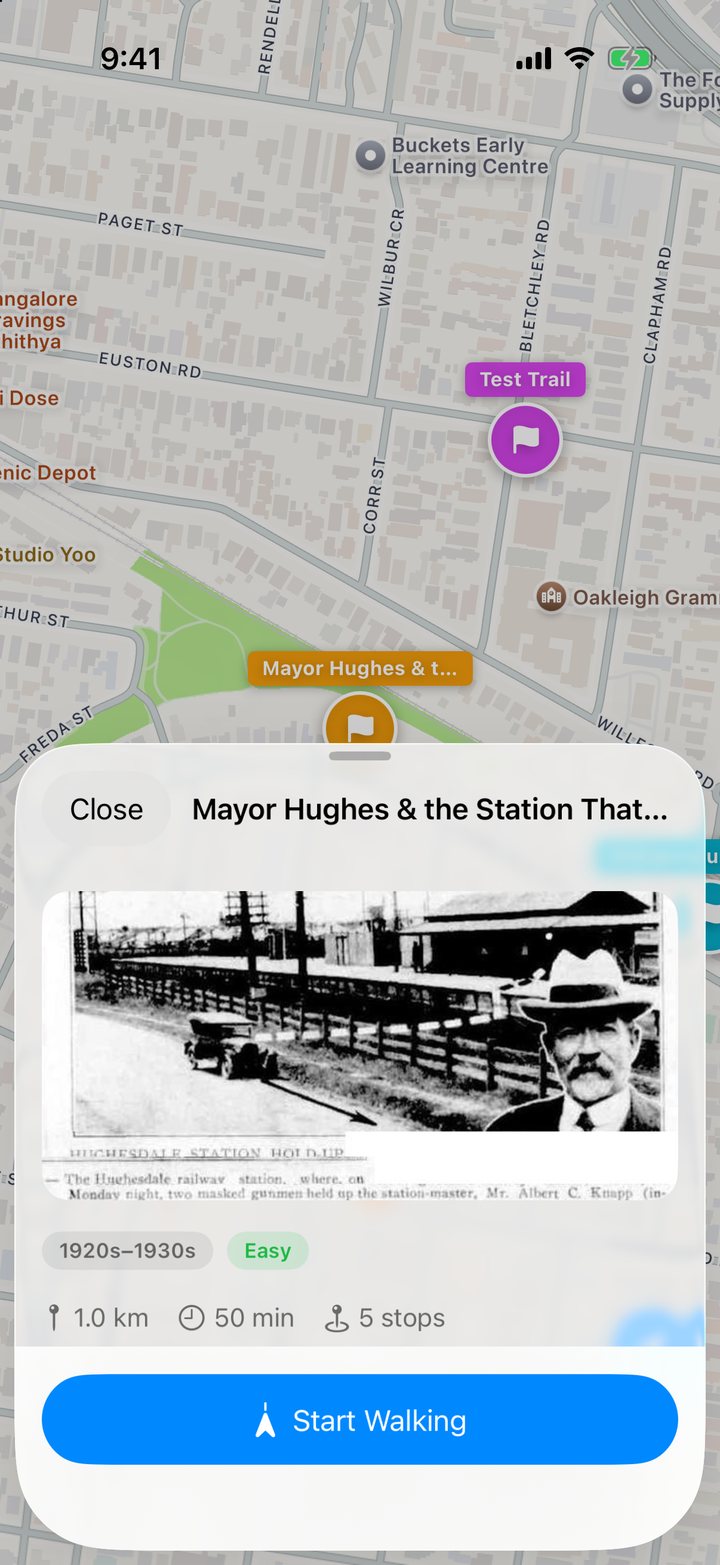
- Map shows trails near you as coloured flags. Tap one.
- Trails lists them.
- Search finds trails by title, description or theme. Try a suburb, a person’s name, or a word like “station” or “pub”.
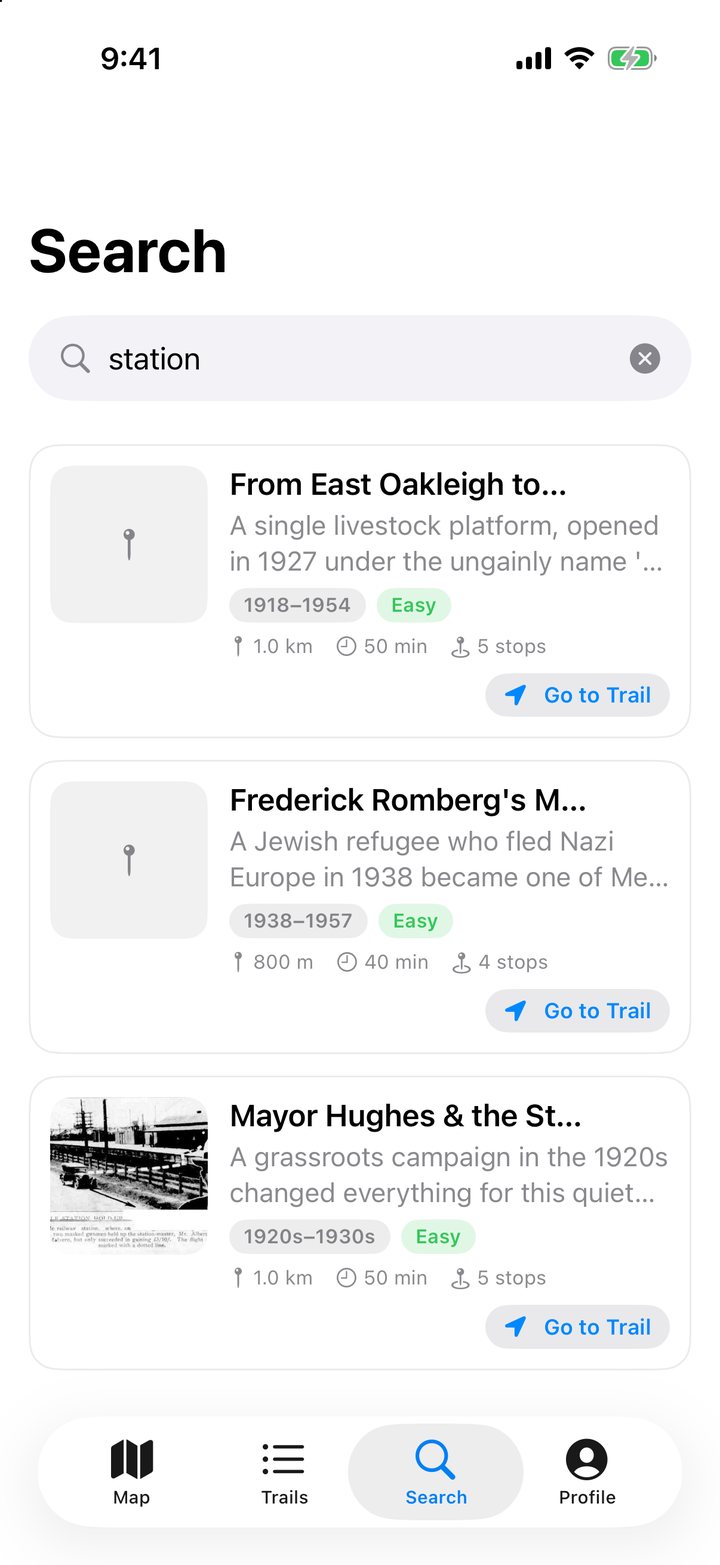
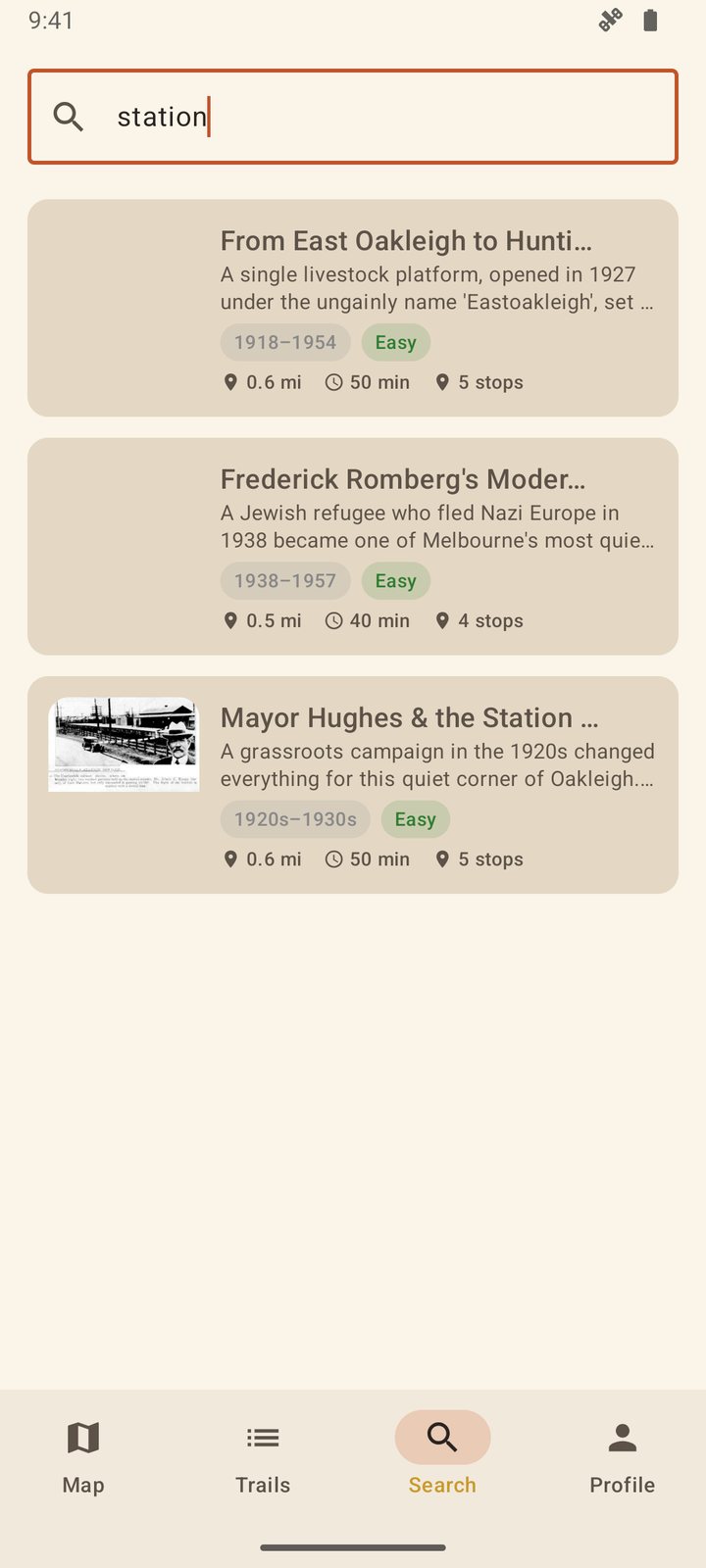
Tap a trail to open its card. You’ll see its photo, the era it covers, how long it is and how many stops it has. When you’re ready, tap Start Walking.
The first time, the app asks you to sign in. That’s so it can remember which stops you’ve visited, and let you pick up where you left off.
2. Walking in compass view
In compass view the dial does the work. The line on the dial points to the next stop, and the big number underneath is how far away it is. The small map below shows where you are and the way to go, and it turns to face the direction you’re walking.
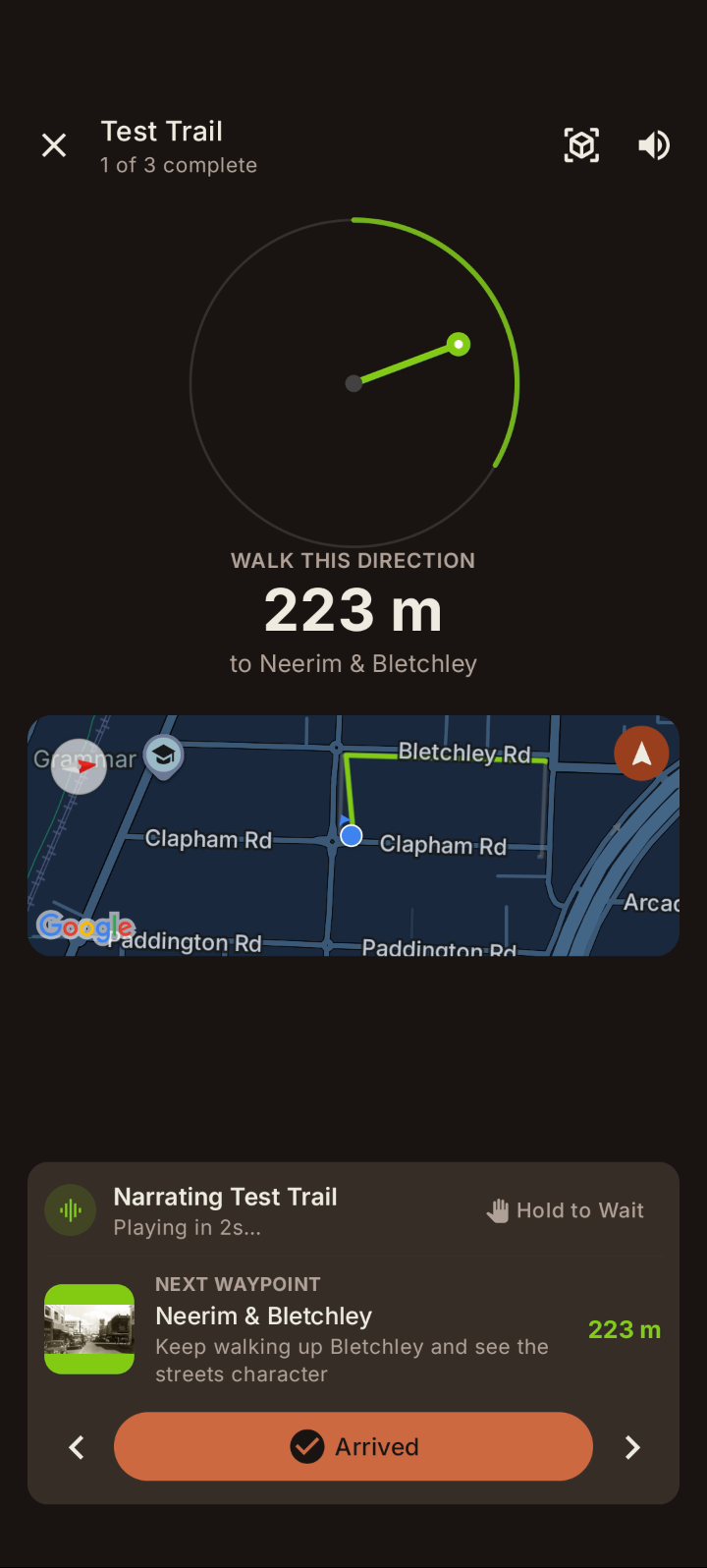
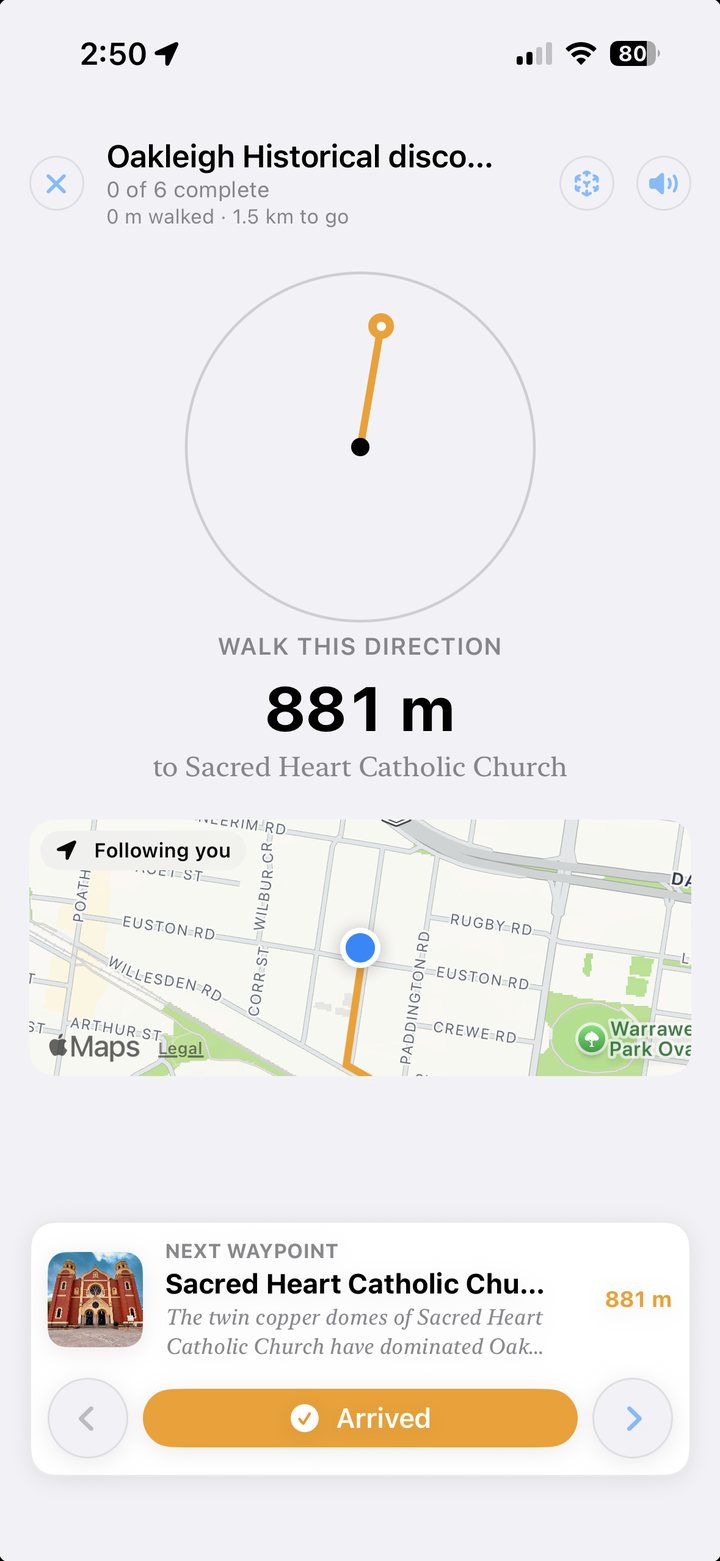
At the bottom is the card for the next waypoint, the next stop on the trail:
- When you get close, the story starts on its own. A short countdown appears first. If you’re not ready (you’re crossing the road, say), press and hold Hold to Wait.
- If you’re standing at the stop and the phone hasn’t noticed, tap Arrived.
- The ‹ and › arrows step back to the previous stop or skip ahead to the next one.
3. Switch between compass view and AR view
The switch is the button at the top right, next to the speaker button. It shows the view you’ll go to, not the one you’re in:
- In compass view it shows a cube (the AR symbol). Tap it to switch to AR.
- In AR view it shows a folded map. Tap it to go back to compass view.




Which view you start in:
- iPhone starts your first walk in compass view, then remembers whichever view you used last.
- Android starts every walk in compass view. Tap the cube when you want AR.
If the camera can’t start (usually because the app wasn’t given permission to use it), the app tells you and drops back to compass view.
If the button isn’t there at all, your phone can’t run AR. You can still walk every trail in compass view.
When to use which. Most people walk in compass view and switch to AR as they get close to a stop, or on a long straight footpath where the path on the ground is fun to follow. Switch back to compass view before you cross a road. AR needs you looking at your phone, and that’s the moment to look up.
4. Walking in AR view
Hold the phone up in front of you, at about chest height, as if you were taking a photo of the street.
The first half-minute. The phone has to work out exactly where you are and which way you’re facing, more precisely than ordinary GPS can. It does this by matching what the camera sees against street imagery of the buildings around you. So:
- Point the camera at the buildings across the street, not down at the footpath.
- Start walking. It locks on much faster once you’re moving.
On Android you’ll see a message saying so until it’s locked on. Nothing is drawn until it’s sure, so the path never appears in the wrong place. On iPhone the path appears straight away using GPS and the compass, then shifts into its exact position once the phone has matched the buildings.
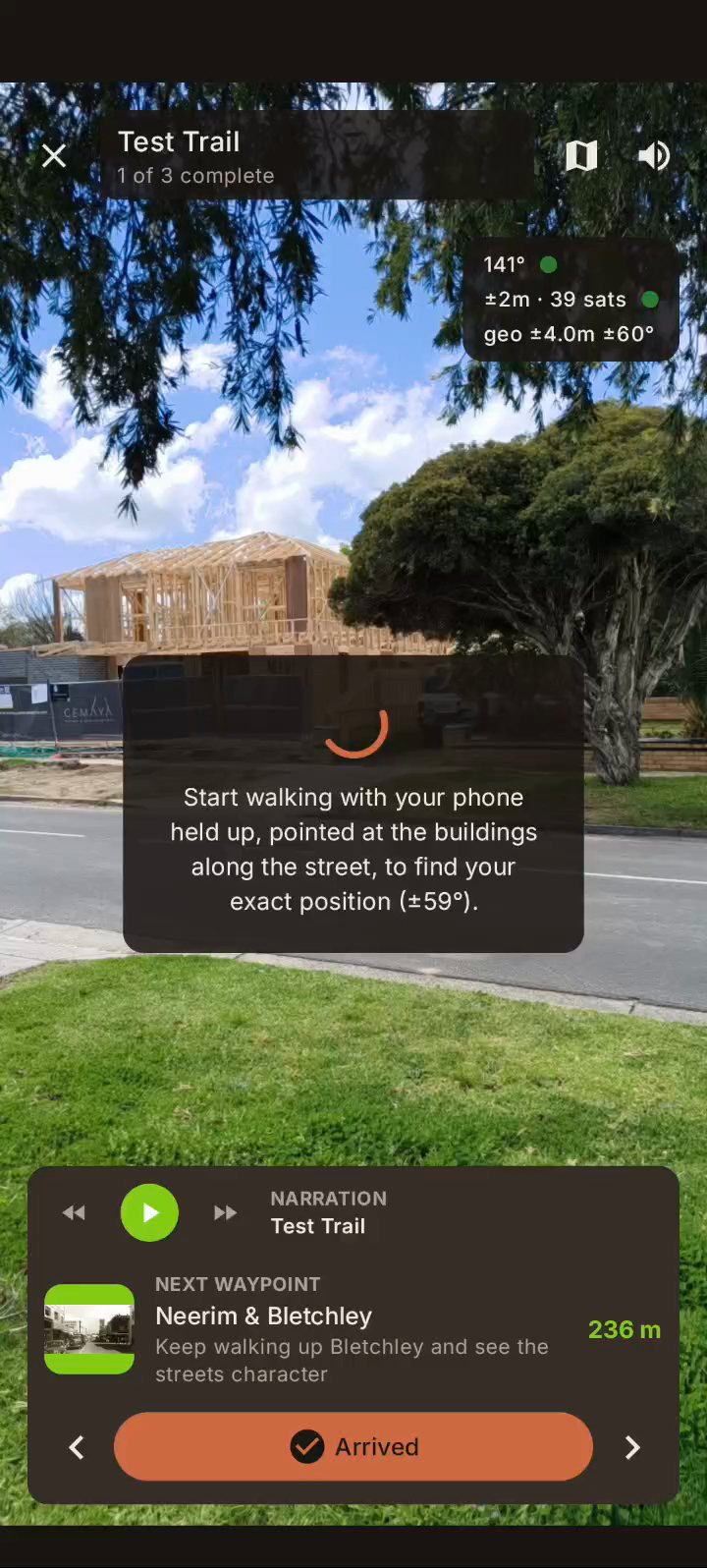
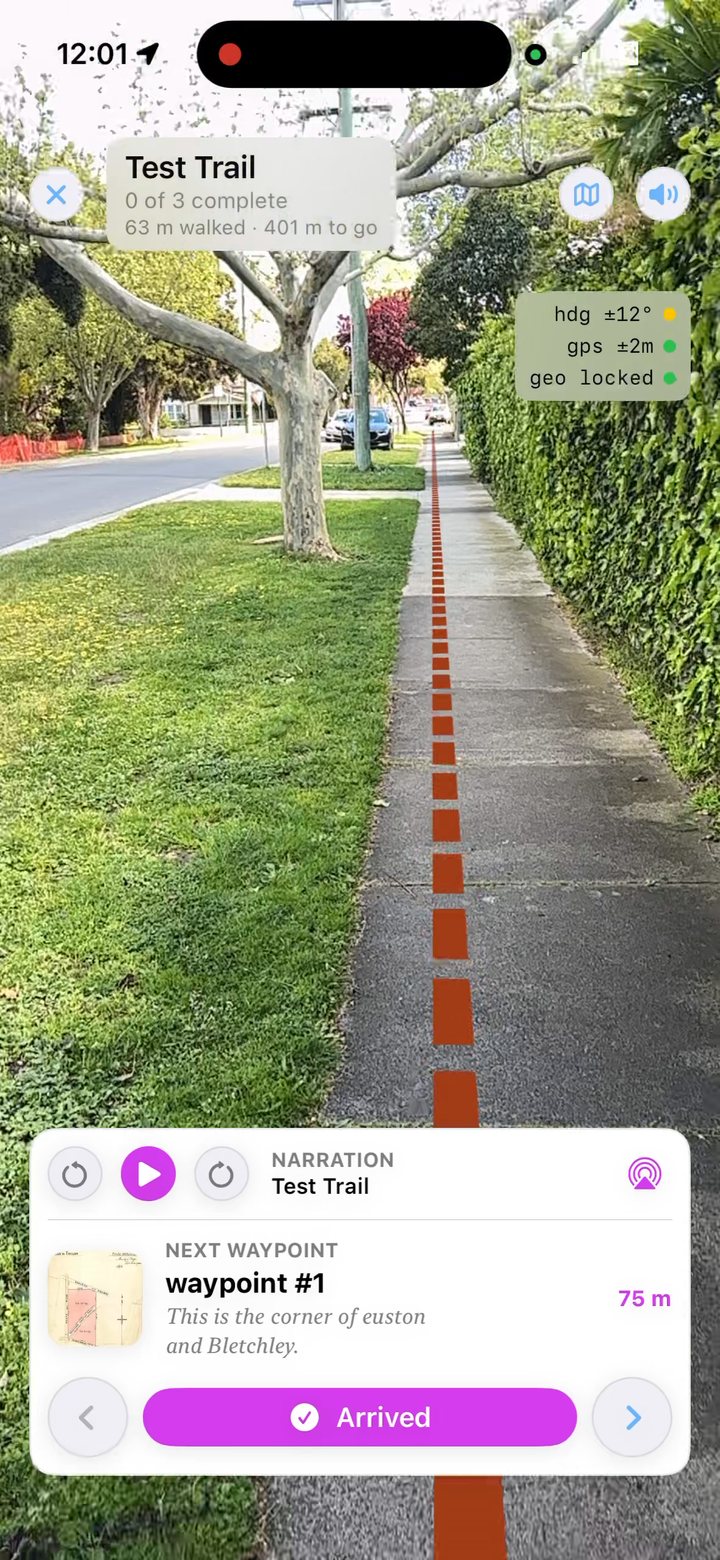
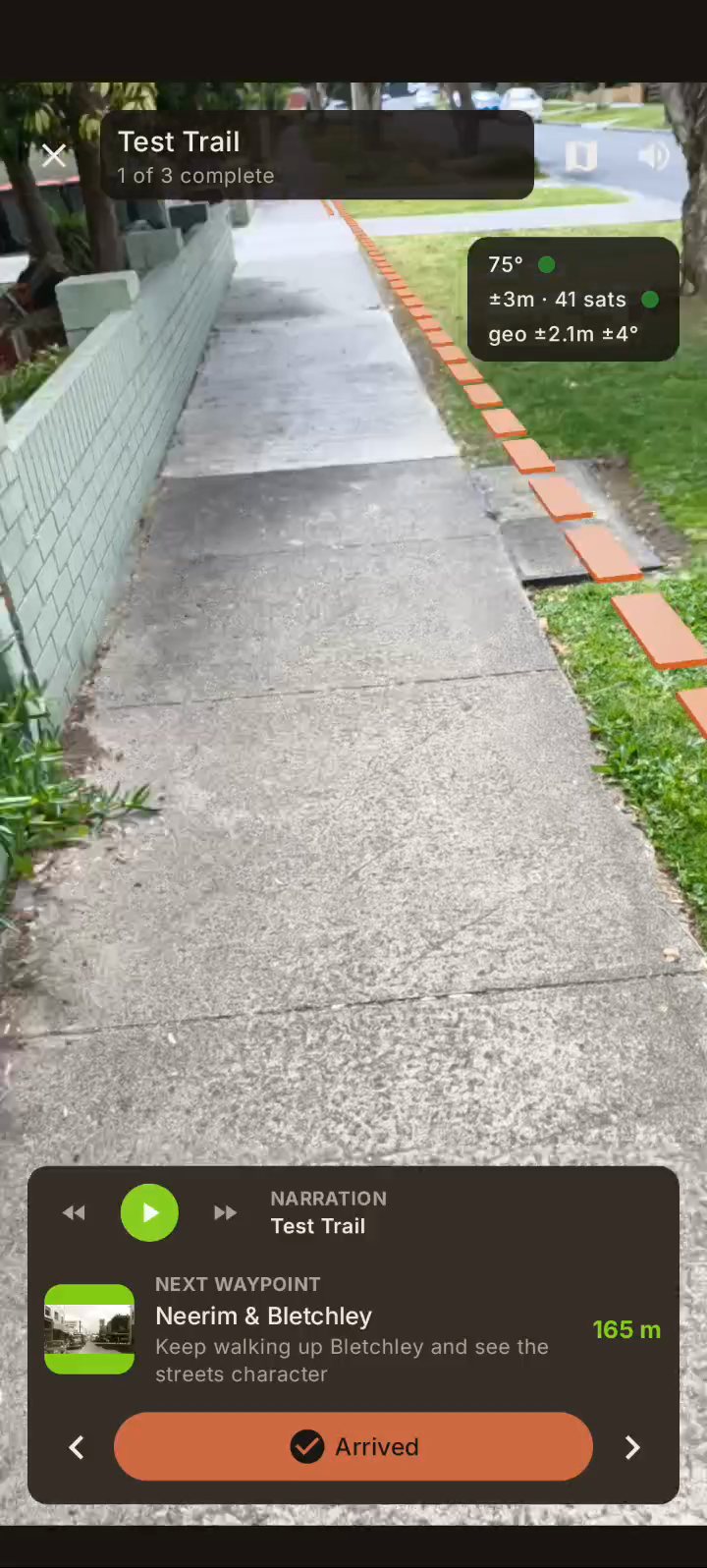
Once it’s locked on, a dashed clay-coloured path is drawn along the ground, leading to a lamp-post marker standing at the next stop. Just follow it.
5. What the lights mean
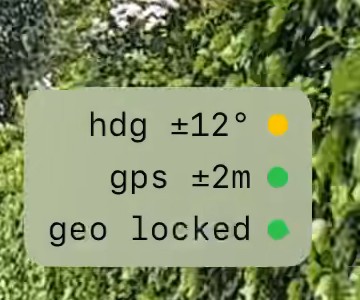
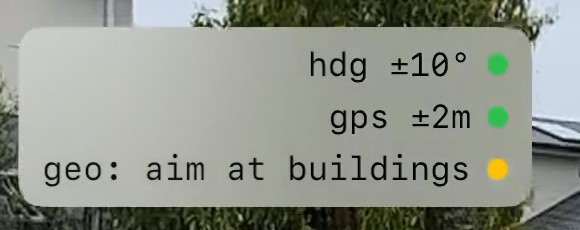
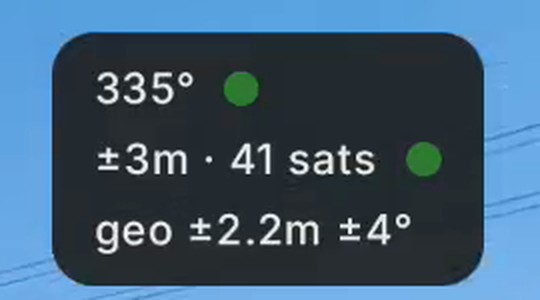
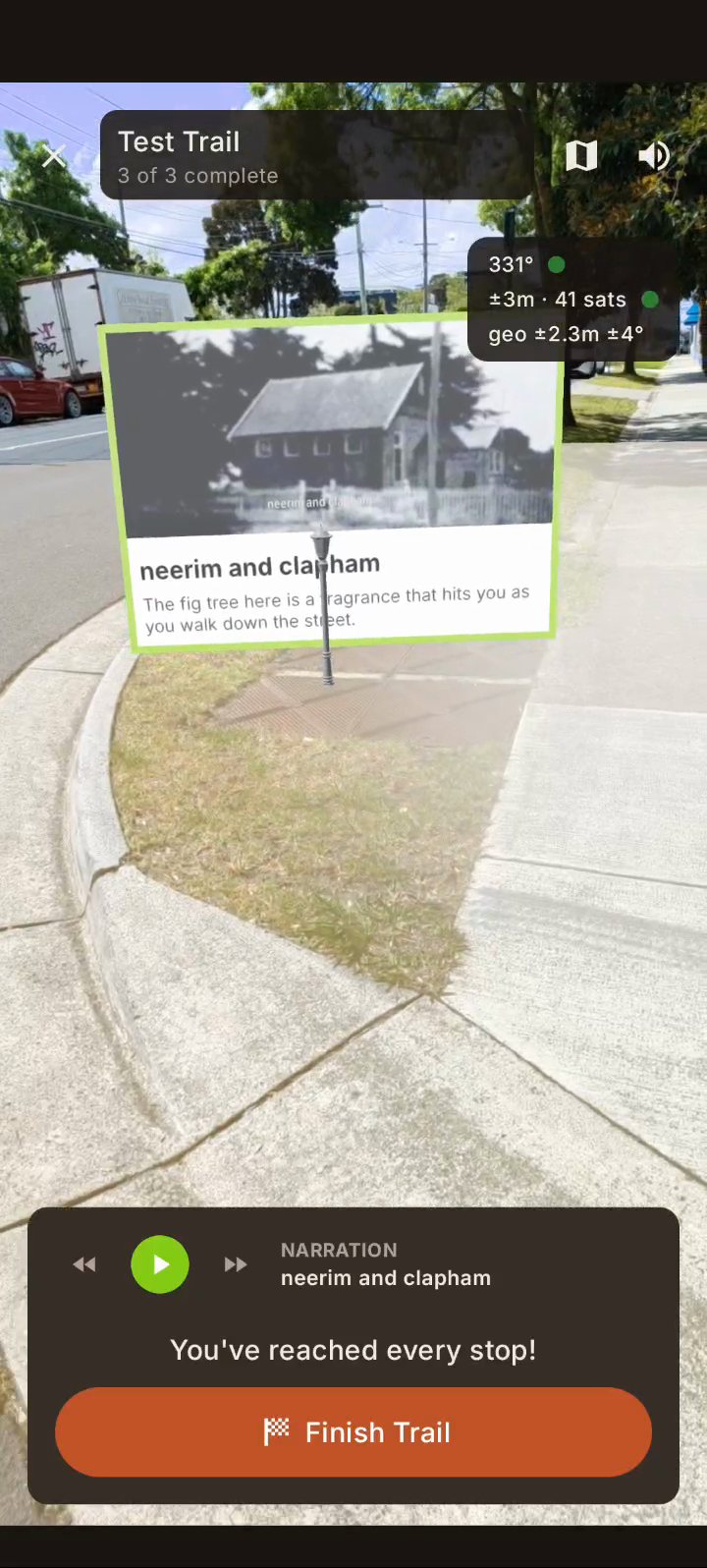
In AR view, a small box at the top right shows how sure the phone is about where you are. Each line has a light: green is good, yellow is getting there, red means it’s struggling. You don’t need to watch them. They’re there for when the path looks wrong, so you can see why.
On iPhone
| Line | What it's measuring | The lights |
|---|---|---|
hdg ±12° |
The compass: how sure the phone is which way it's facing, give or take that many degrees. | within 10° within 20° worse, or no reading |
gps ±2m |
Your GPS position, give or take that many metres. | within 15 m within 25 m worse, or no fix |
geo locked |
Whether the phone has matched the camera to Apple's street imagery. Once it has, it knows where you're standing and which way you're facing far better than GPS and the compass can, and those two lines stop mattering much. | geo locked: matchedgeo: aim at buildings: still lookinggeo off: not available here |
Grey geo off means Apple’s street matching doesn’t cover where you are. It’s only available in some cities and areas. AR still works, but it’s steering by GPS and the compass alone, so the compass line matters most. A path that’s off to one side usually means the compass is out (see below).
On Android
| Line | What it's measuring | The lights |
|---|---|---|
335° |
The compass direction you're facing, in degrees (0° is north, 90° east). | high accuracy medium low unreliable |
±3m · 41 sats |
Your GPS position, give or take that many metres, and how many satellites the phone is using. | within 15 m within 25 m worse, or no fix |
geo ±2.2m ±4° |
Google's street-imagery position: how far out it might be, and how far its direction might be off. This is the one Android uses to place the path. | No light. The path appears once this is within about 3 m and 10°, and pauses with a message if it drifts much further. |
On Android the compass and GPS lines are only there for comparison. They don’t move the path. That’s deliberate: as the next section explains, a phone’s compass can be wrong and still claim it’s fine.
When the lights are red, or the path looks wrong
- Hold the phone up and point it at buildings, not at the ground.
- Keep walking in a straight line for 20 or 30 metres. Moving helps the phone work out its direction.
- Step away from metal: parked cars, steel fences, power poles and tram tracks can all nudge the compass for a moment.
- Check the back of your phone for a magnet (next section).
- If it still won’t settle, switch to compass view and carry on. The stories work the same either way.
6. Arriving: the notice board
When you reach a stop, its notice board appears in AR, standing in the street at the place itself, with an old photo and the story’s opening lines. The story is read aloud as well. With headphones on, it sounds as if it’s coming from the board.
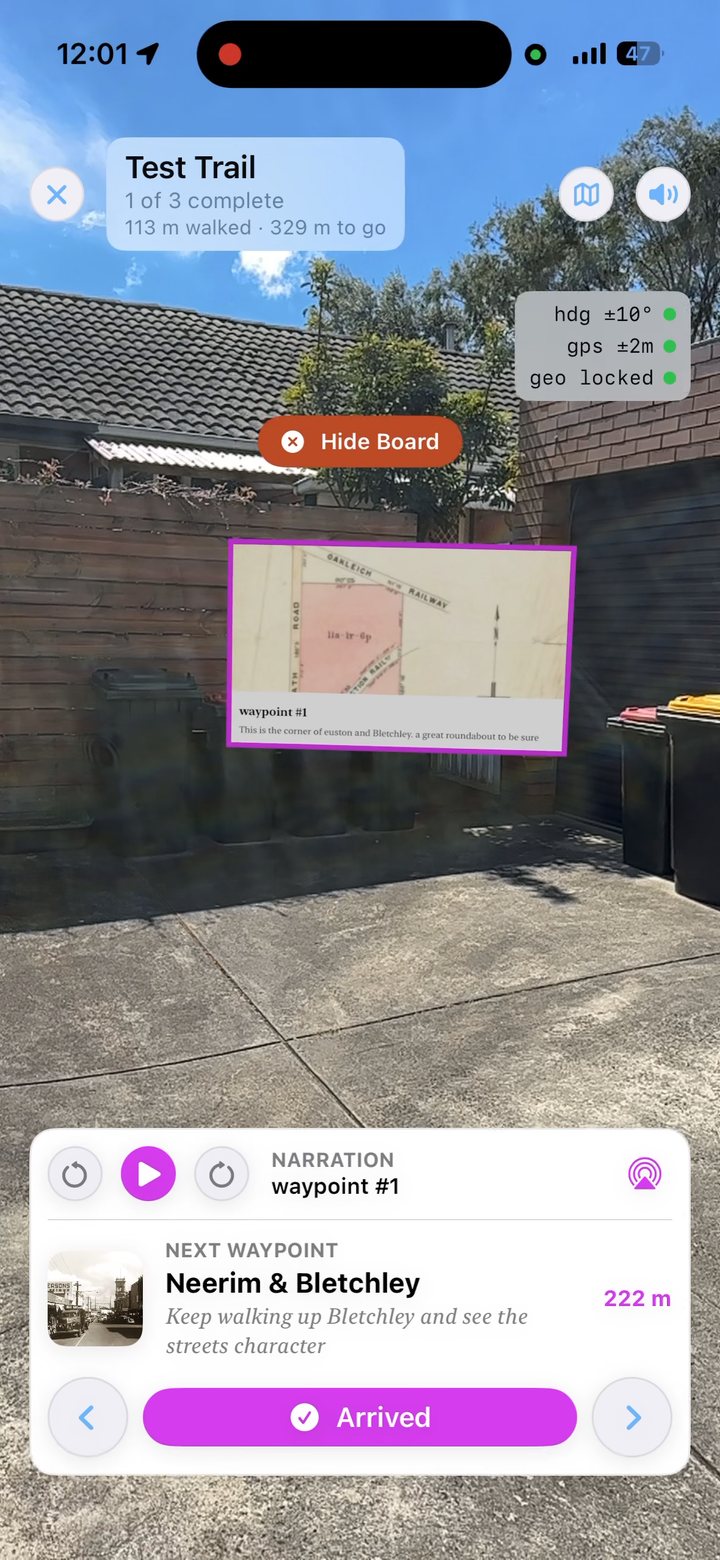
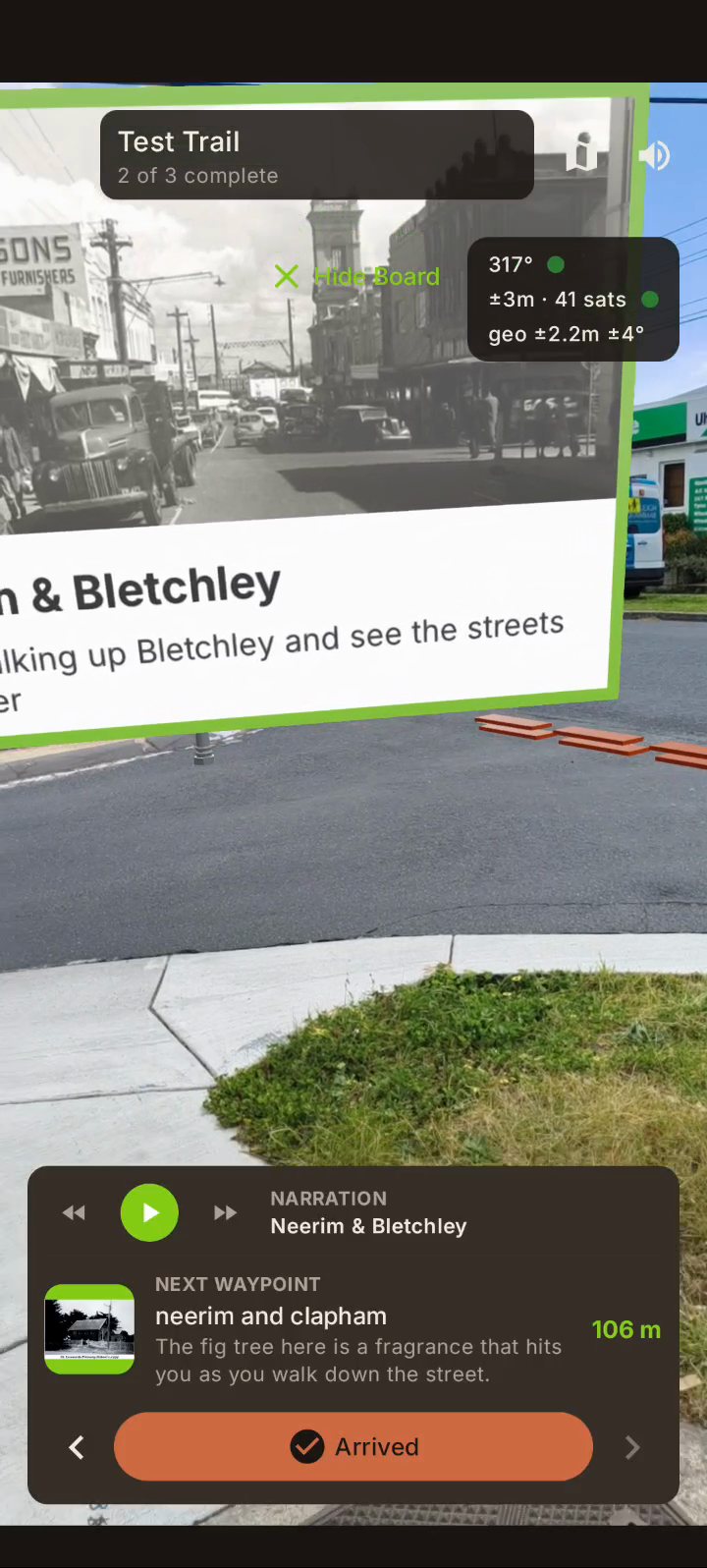
The board stands where the stop is, and that isn’t always where you’re pointing the phone. If it’s off the edge of the screen, a Board this way arrow appears on the left or right. Turn that way and it’ll come into view.
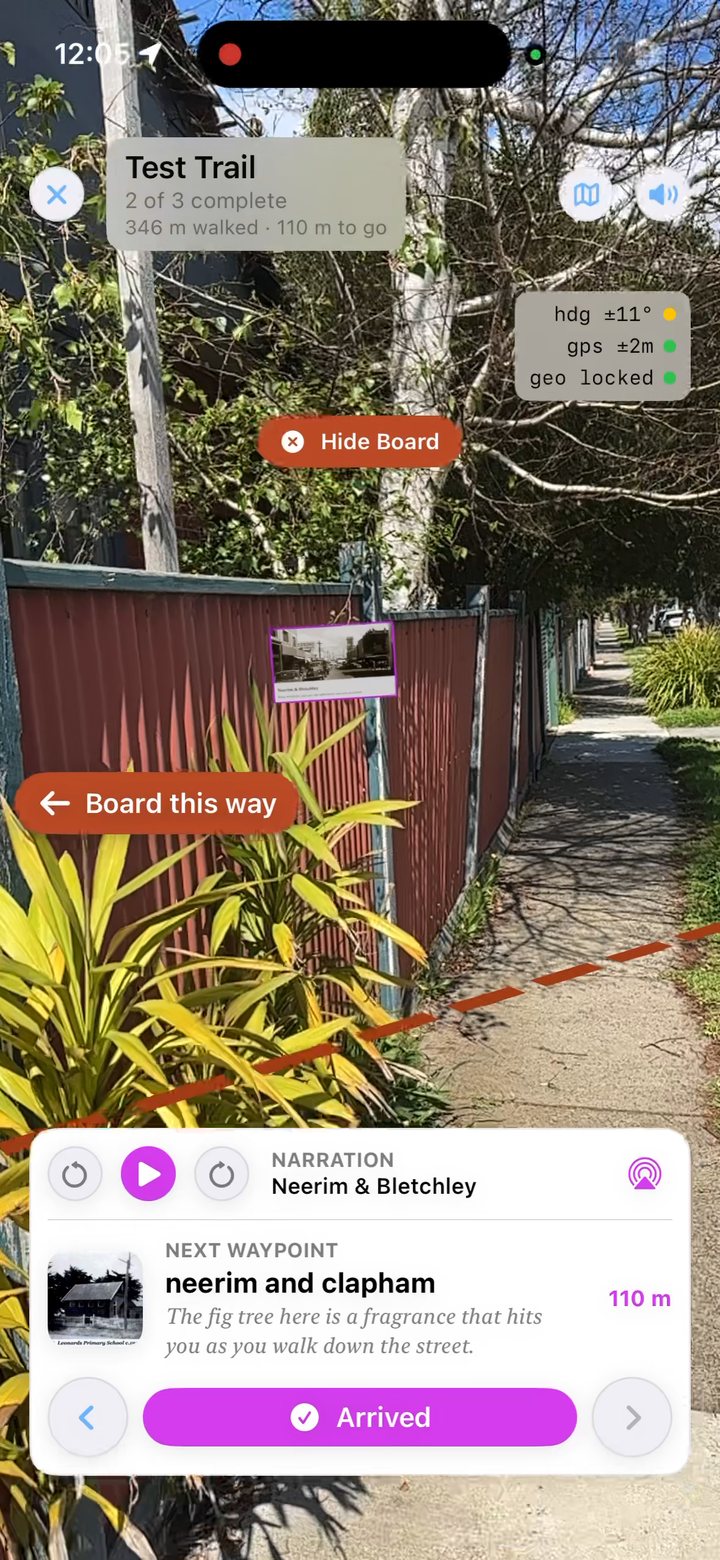
When you’ve finished with it, tap Hide Board. It also tidies itself away once you walk off towards the next stop.
Pop out the 3D model
Some stops come with a 3D model made from the old photograph. When there is one, the board has a Pop out button on its photo. Tap it and the model grows out of the photo and hangs in the air in front of the board. Walk around it and look at it from the side. Tap Pop in to put it back.
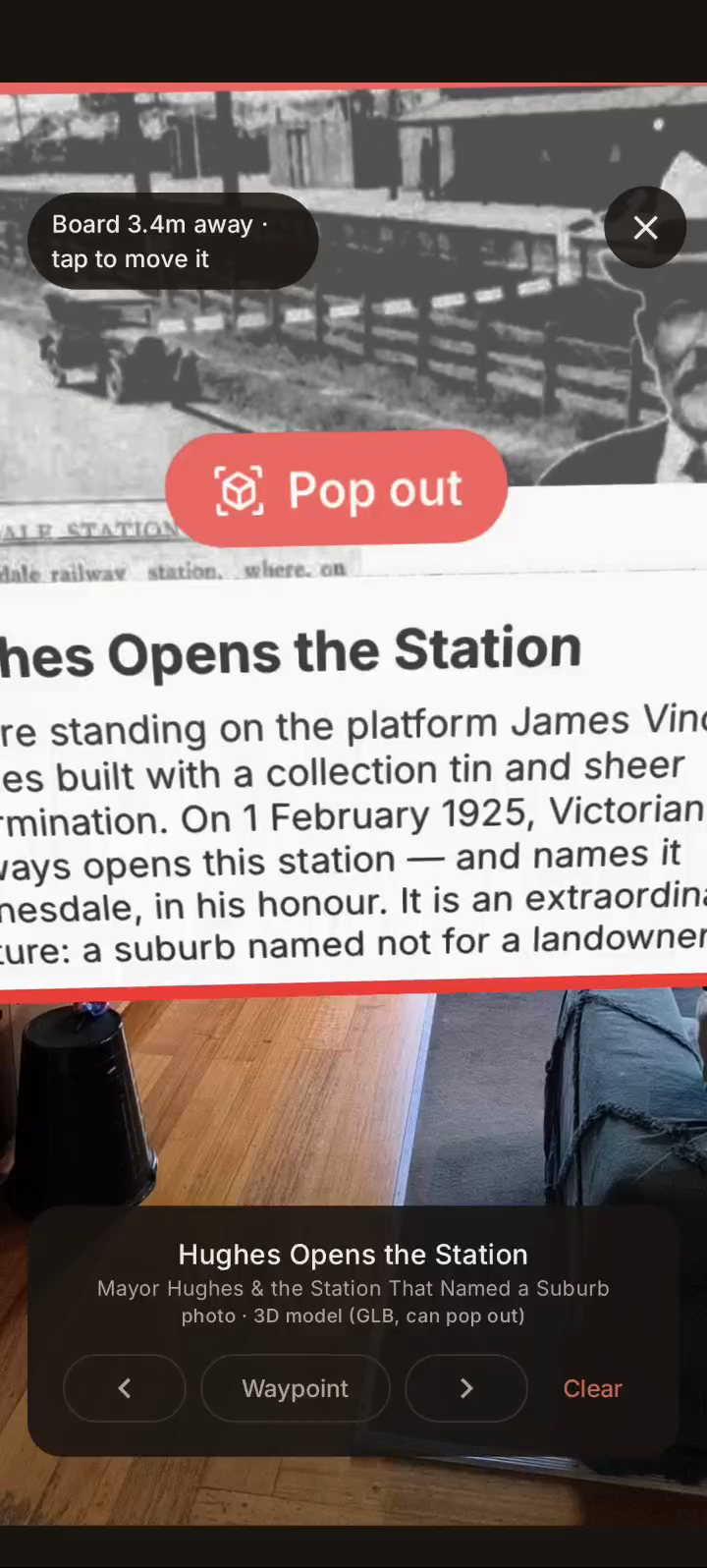
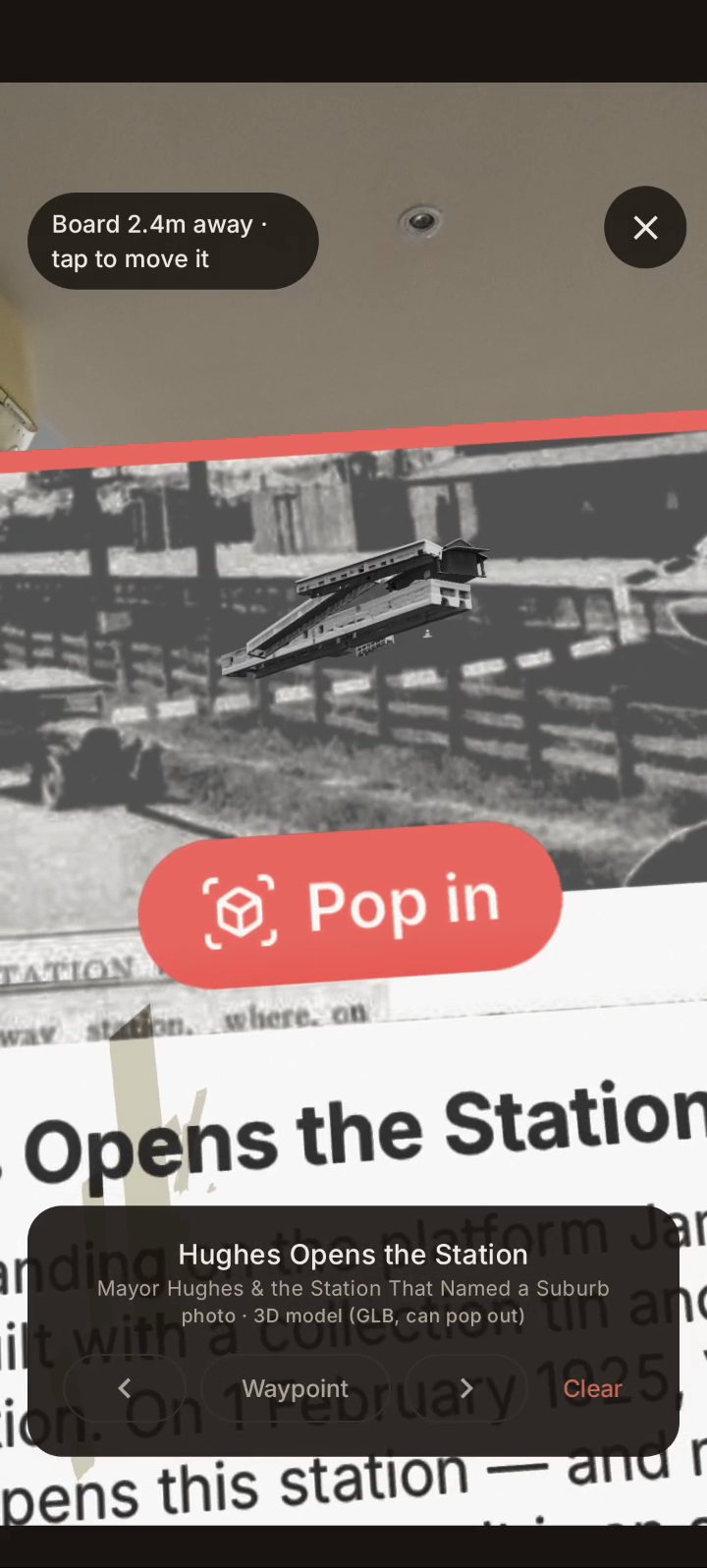
These shots were taken indoors while we were testing, which is why there’s a floorboard where a footpath should be. On a walk the board stands at the stop itself. The 3D models are new and still rough: grey, and missing pieces here and there. They’ll get better.
7. Finishing the trail
At the last stop the card at the bottom changes to You’ve reached every stop! Tap Finish Trail to mark the trail as done. If you’d like to walk it again another day, open the trail and the app will offer to start over.
Tips for accurate AR
Take the magnet off
This is the big one. Your phone’s compass is a tiny magnet sensor, and anything magnetic stuck to the back of the phone confuses it, all the time, wherever you point it. That includes:
- PopSockets and other grips with a metal plate or magnetic mount
- MagSafe rings, wallets, stands and battery packs
- the steel disc for a magnetic car mount
- cases and folio covers with magnetic clasps

We found this out the hard way. On one of our own test walks the AR path kept pointing off into people’s front gardens. The cause turned out to be the steel disc above. With it on, the compass was out by about 110 degrees, and the phone still reported its compass as highly accurate. A green compass light can’t catch this, because the phone has no way to tell.
Before you walk, take the grip, ring or wallet off, or take the phone out of a magnetic case. Then hold the phone up and walk a few steps so the compass can settle. It affects compass view too: the dial uses the same compass, so with a magnet attached it can point the wrong way while you’re standing still.
The rest
- Hold it up, point at buildings. The phone finds its exact position by recognising building fronts. Pointing at the footpath, a park or the sky gives it nothing to go on.
- Keep moving. It locks on faster while you’re walking, and keeps its bearings better too.
- Parks and open ground are harder. With no buildings in view, Android may tell you there’s no street imagery nearby. Keep walking. Once it’s locked on it can usually carry you through.
- Good light helps. The camera has to see the street, so AR struggles at dusk, at night and in heavy rain. Compass view works in any light.
- Watch your battery. AR runs the camera, GPS and graphics all at once. On a long trail, use compass view between stops and switch to AR as you arrive.
- Look up at crossings. Switch back to compass view, or just lower the phone, before you step off the kerb.