Build a trail by hand, without the AI
Already know the story you want to tell? Find your suburb, start an empty study, and write the trail yourself: every stop, every word, every photo.
- A computer or tablet. A bigger screen makes the writing easier.
- A Suburb Historian account at historian.storytrail.app
- Your story, worked out stop by stop. Notes are fine; a typed draft is even better.
- A photo for each stop, either a web link to one or a picture saved on your computer
A video walkthrough is on its way. Until then, the steps and screenshots below cover everything it will.
When to build by hand
The first guide lets the AI do the research and write a first draft. That’s quick, but sometimes you already know exactly what you want to say. Perhaps it’s a story you’ve researched for years, a family history, or a walk your historical society already runs. In that case you can skip the AI entirely and build the trail yourself. Nothing is written or searched for you, and every word on the trail is yours.
As an example, this guide builds a short walk called One O’Clock at Point Gellibrand. It has three stops in Williamstown, Victoria, and tells how the town kept time for the ships in the bay. Every screenshot shows the real thing as we built it.
- Find Go to your suburb
- Start An empty study
- Trail Title and description
- Stop Add one, then…
- Text …write its story
- Location …put it on the map
- Photo …add a picture
- Check Read the Walk Score
You do steps 4 to 7 once for each stop. A three-stop trail means going round that loop three times.
1. Find your suburb
- Go to historian.storytrail.app and sign in.
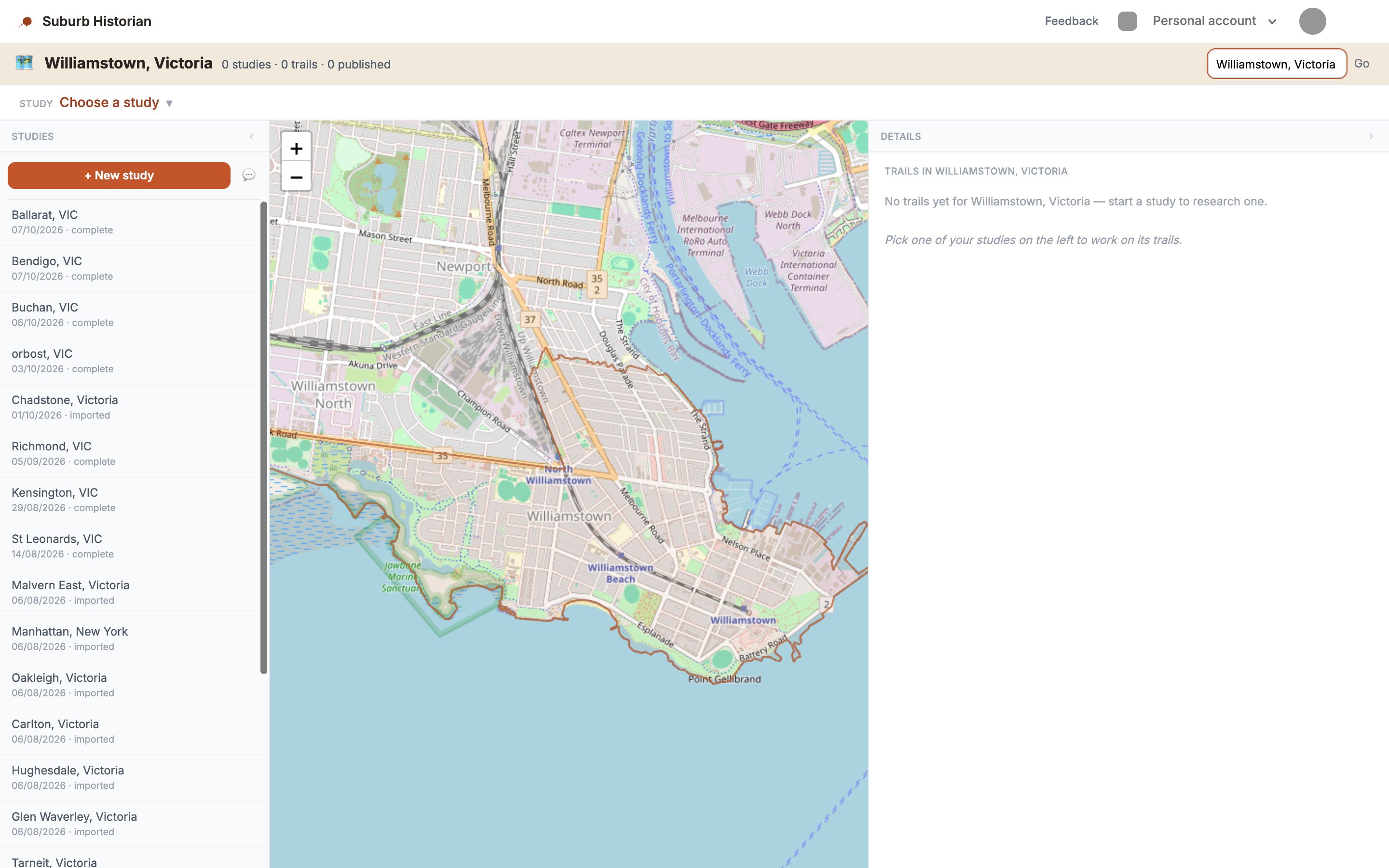
- In the Search a suburb… box at the top right, type your suburb and its state, such as Williamstown, Victoria. Then press Enter or click Go.
- The map moves to your suburb. Any trails already published there show up as pins, so it’s worth a look to make sure your story hasn’t been told already.
2. Start an empty study
- At the top of the Studies column, click + New study. Your suburb is filled in for you.
- Tick Opt out of AI. The research options disappear, since you won’t need them.
- Click ✏️ Start Study.
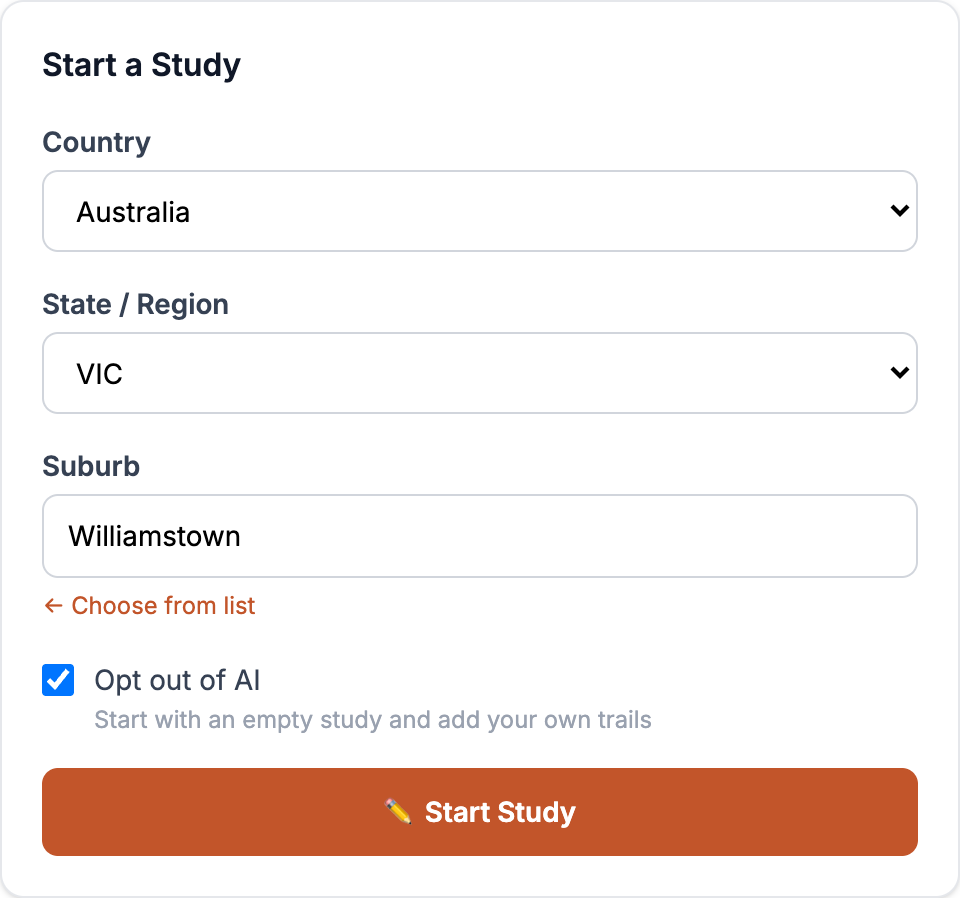
Your new, empty study opens straight away. There’s no waiting, and it’s marked manual so you can tell it apart from studies the AI researched.
3. Add your trail
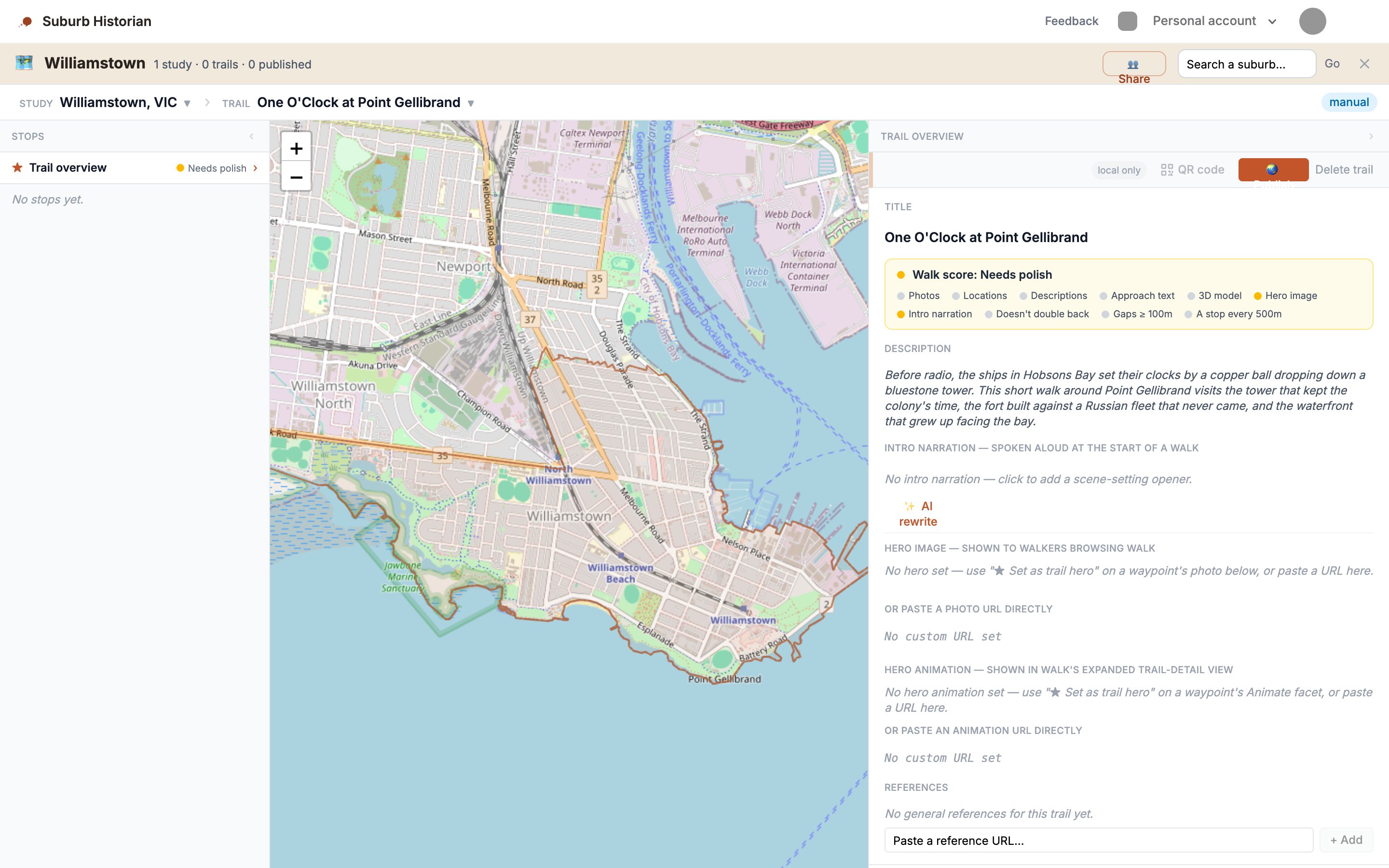
- At the bottom of the Trails column, click + Add trail. The new trail opens straight away, with its Trail overview on the right.
- Click the Title, which says Untitled trail. Delete those words, type your own title, and press Enter.
- Click Description and write a sentence or two about the walk. This is what walkers read when deciding whether to take your trail, so make them curious. Click anywhere else to save it.
4. Add a stop
Each stop is a place on the walk where the walker pauses and hears part of the story.
- At the bottom of the Stops column, click + Add stop.
- The new stop opens on the right, with a row of tabs: Text, Location, Photo and a few more. You only need the first three.
Don’t worry about the orange warning about the location. It disappears once you’ve put the stop on the map in step 6.
5. Write the stop’s story
On the Text tab:
- Chapter title. Click Untitled waypoint, delete it, type a short name for this part of the story, and press Enter.
- Narrative. This is what the walker hears when they arrive. Click No narrative yet — click to write one, write or paste your story, and click outside the box to save.
- Approaching story. This is told while they walk towards this stop from the last one. It’s a good place for directions and a hint of what’s coming. Leave it empty on the first stop.
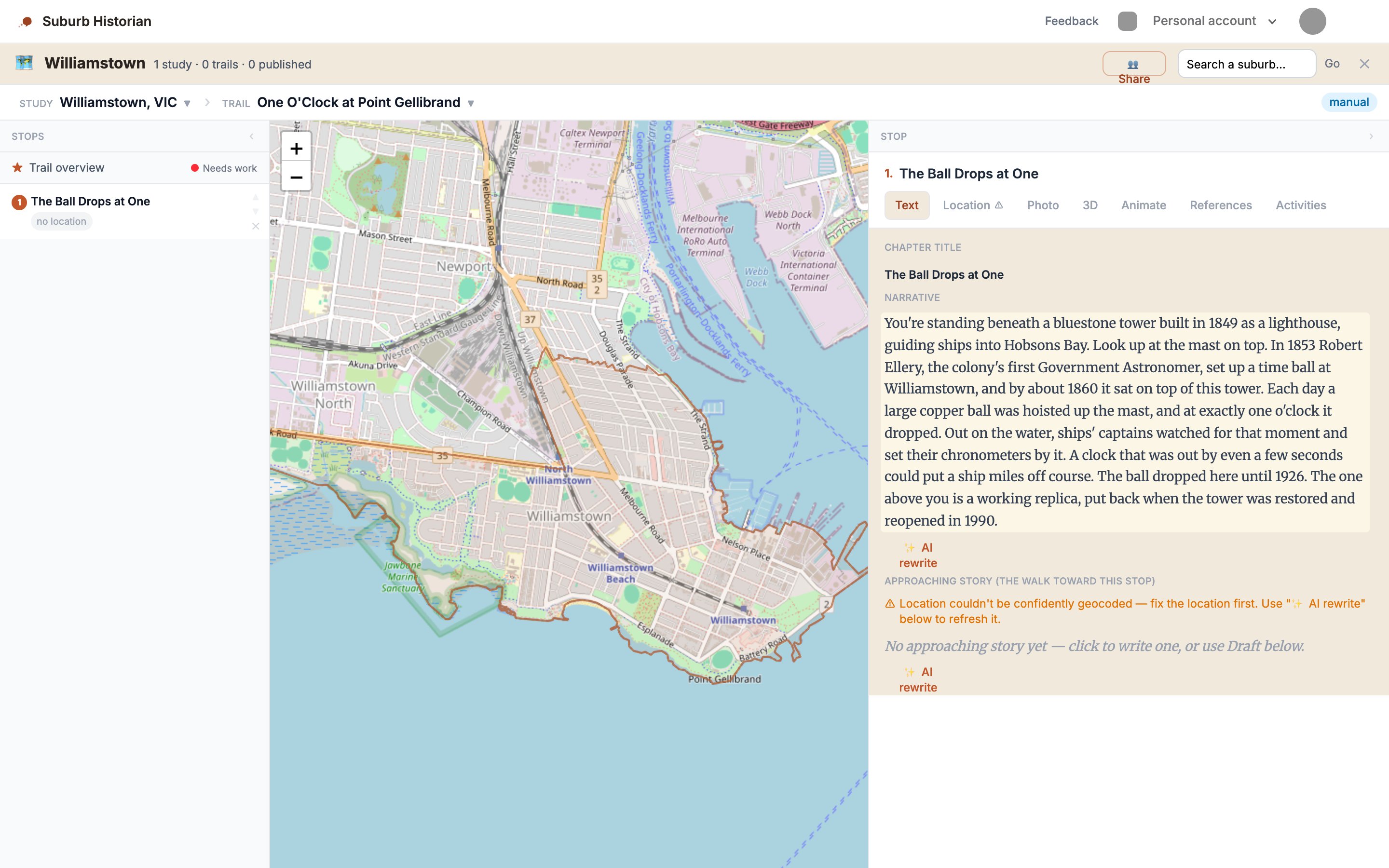
You’ll see ✨ AI rewrite buttons under the text boxes. They’re there if you ever want a suggestion, but you never have to use them, and nothing changes unless you click one and then choose to apply what it suggests.
6. Put the stop on the map
On the Location tab:
- Location name. Click No location name and type the place’s name as you’d like walkers to see it, such as Timeball Tower, Point Gellibrand. Press Enter.
- Find by address. Type the address into the box, such as Timeball Tower, Battery Road, Williamstown VIC, and click Locate.
- A line underneath says what it found (Resolved to: …), and a numbered pin drops on the map. Check that it’s in the right spot.
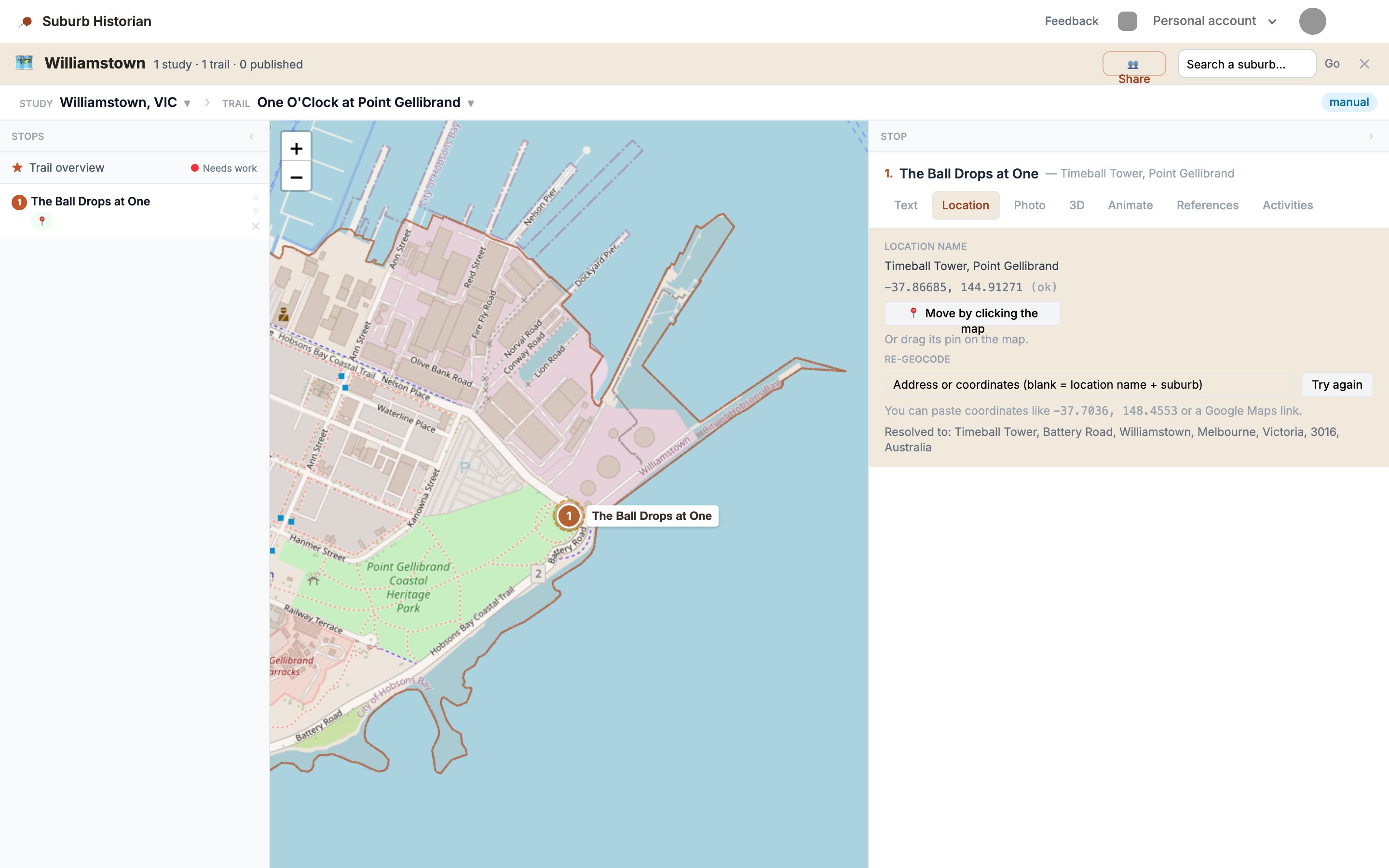
• Drag the pin on the map to the right spot.
• Click 📍 Move by clicking the map, then click the exact spot.
• Paste coordinates into the address box, such as -37.86949, 144.90631, and click Try again. You can find a place's coordinates by right-clicking it in Google Maps. We did this for the fort.
7. Add the stop’s photo
On the Photo tab, add your picture in one of two ways:
- Paste a link. If the photo is online, copy its web address. Under Or paste a photo URL directly, click No custom URL set, paste the address, and press Enter.
- Upload your own. Under Or upload a photo you’ve downloaded, click Choose file and pick the photo from your computer. Add a caption and who to credit, then click ⬆️ Upload photo.
The photo then appears at the top of the tab. Underneath it:
- Click Click to add a caption and describe the photo.
- Click Click to credit a source and say who took it or which collection it’s from.
- If this is the picture you’d like on the trail’s cover, click ★ Set as trail hero. A green tick confirms it. The cover is what walkers see when they’re browsing trails, so choose your best one.
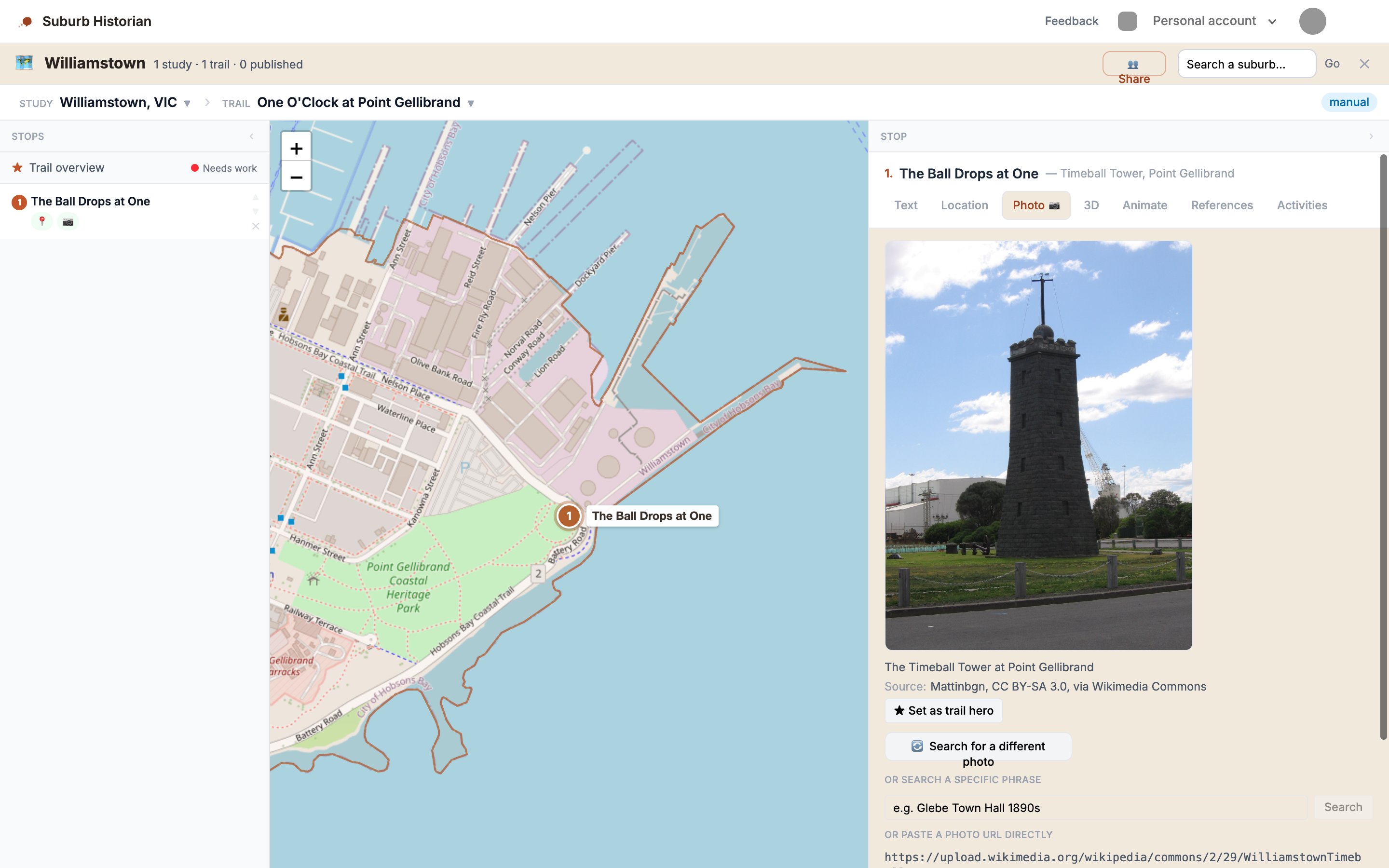
That’s one stop finished. Go back to step 4 and click + Add stop for the next one. Once a second stop is on the map, a line appears between them showing the walking route. If your stops end up in the wrong order, use the small ▲ ▼ arrows beside each one in the Stops column. Walkers visit them from top to bottom.
8. Check your trail
When every stop has its words, a location and a photo:
- Click Trail overview at the top of the Stops column.
- Check the trail has a cover picture under Hero image. If it doesn’t, open your favourite stop’s Photo tab and click ★ Set as trail hero.
- Look at the Walk Score. Each dot is one check. Green means done, amber is worth a look but optional, and red needs attention before you publish.
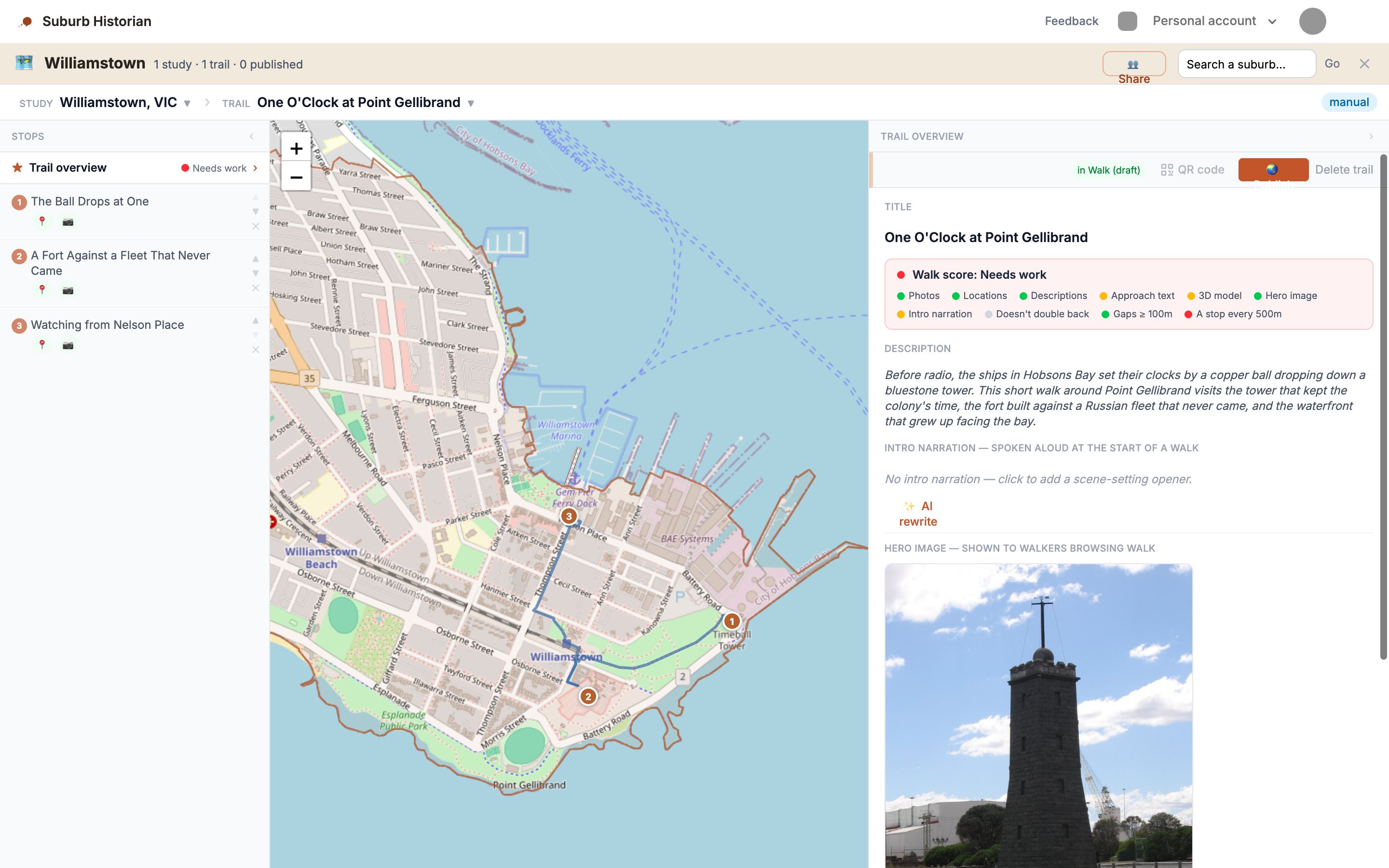
That’s it. You’ve built a trail by hand. It’s saved as a private draft. Nobody else can see it until you choose to publish it, so take your time, walk it yourself, and read it aloud as you go.
If something goes wrong
The map went to the wrong place. Search again with the state or country added, such as Williamstown, Victoria.
The address can’t be found, or the pin is in the wrong spot. Drag the pin, click 📍 Move by clicking the map, or paste coordinates. See the tip in step 6.
A photo link won’t show. Some websites don’t allow their pictures to be shown elsewhere. Save the photo to your computer instead and use Or upload a photo you’ve downloaded.
You’ve added a stop you don’t need. Click the small ✕ beside it in the Stops column to delete it.
Anything else. Email us at hello@storytrail.app and tell us which step you’re on.
Photo credits for this example
- Timeball Tower: Mattinbgn, CC BY-SA 3.0, via Wikimedia Commons
- Entrance to Fort Gellibrand: Nick-D, CC BY-SA 4.0, via Wikimedia Commons
- Royal Yacht Club of Victoria: Vincent Pac Soo, public domain, via Wikimedia Commons


