Start a study and get your first draft
From a blank page to a full draft trail: choosing a suburb, checking what the research found, and letting Suburb Historian write the first version of every stop.
- A computer or tablet. A phone works too, but a bigger screen is easier the first time.
- A Suburb Historian account at historian.storytrail.app
- A suburb in mind, and, if you like, a theme or era you want to dig into
A video walkthrough is on its way. Until then, the steps and screenshots below cover everything it will.
How a study works
A study is Suburb Historian’s research into one suburb. You tell it where to look. It searches the historical record, then suggests a few trails. Each trail is a short walk that tells the story of one person or event, stop by stop.
Here’s the whole journey. You’re only needed at two points, and both are marked below. From start to finish it takes 15–20 minutes, but most of that is waiting, and you don’t need to watch.
- Start You choose the suburb
- Research About 3–5 minutes
- Review You check what it found
- Mapping Pins go on the map · ~1 min
- Writing A story for every stop · ~2 min
- Photos Pictures are found · 5–10 min
- Approach The walk between stops · ~1 min
- Complete Over to you to polish
Nothing you do in a study is public. Walkers only see a trail after you choose to Publish it, and that comes much later.
1. Sign in and find the map
- Go to historian.storytrail.app and sign in.
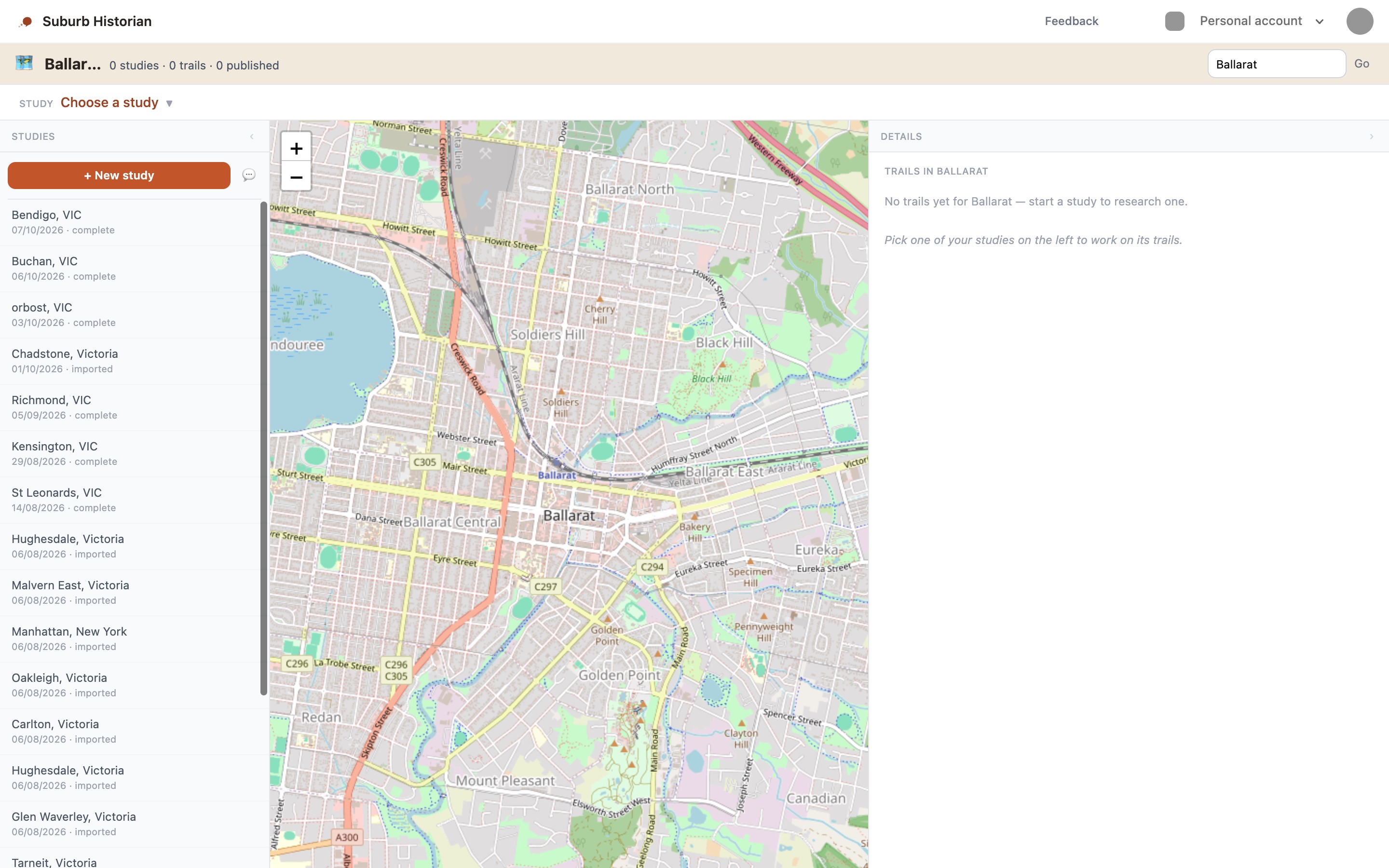
- You’ll land on a map of your area. Trails other people have already published show up as pins. On the left is a column called Studies, listing any studies you’ve started or that someone has shared with you.
2. Start a new study
- At the top of the Studies column, click + New study.
- The Start a Study form opens. Choose a Country, then a State / Region, then a Suburb.
- If your suburb isn’t in the list, click Enter a different suburb → and type its name.
- If you came from the map, this is probably filled in already.
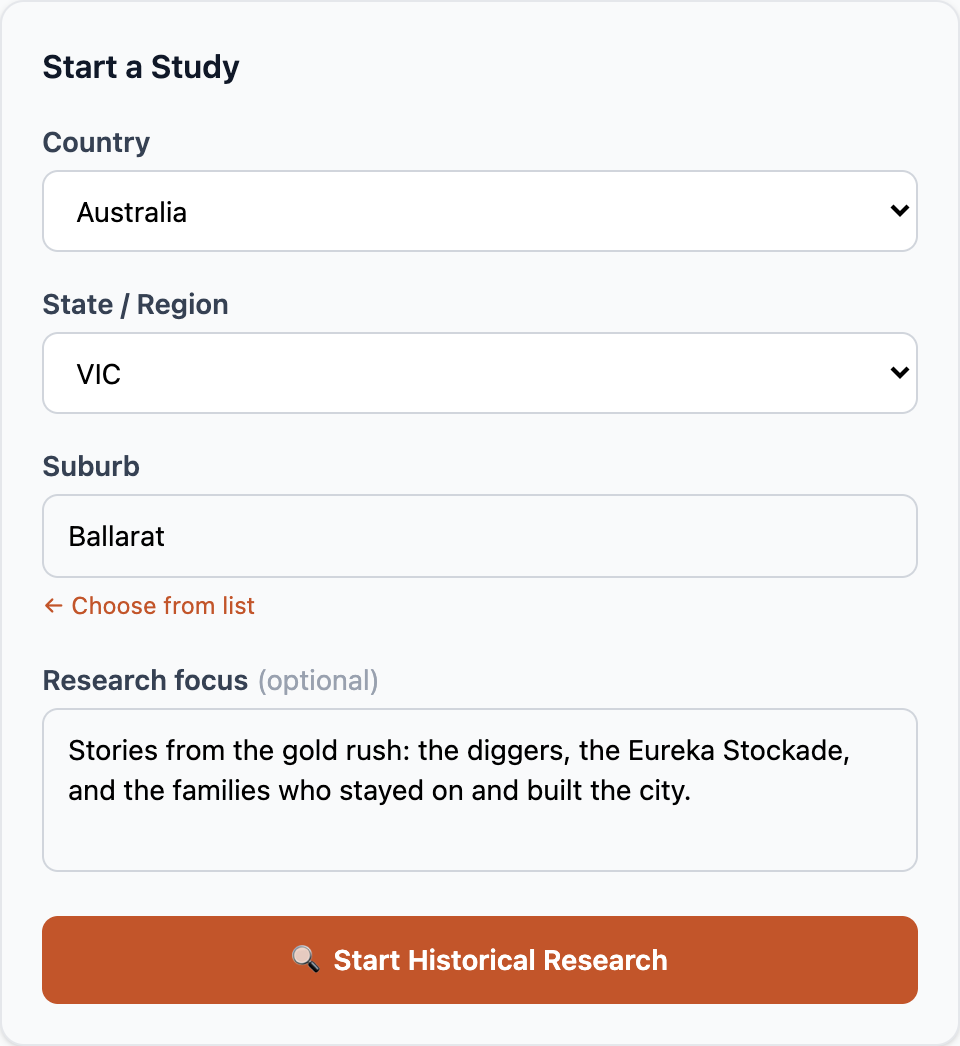
Research focus (optional, but worth it)
The Research focus box is where your local knowledge goes in. It’s optional, but a sentence or two here makes a big difference to what comes back. You can write it the way you’d say it out loud:
- “Focus on the 1880s land boom and the families who built the big houses on the hill.”
- “Stories about the Chinese market gardeners along the creek.”
- “The tannery and the people who worked there. Leave out the railway, it’s been done.”
If someone has already studied this suburb, you’ll also see a box marked Exclude previously found trails. Tick it if you’d like different stories this time.
- When you’re ready, click 🔍 Start Historical Research.
3. While the research runs
You’ll go back to the map, with your new study open. A row of numbered steps in the panel on the right shows how far along it is, and a box underneath says what it’s doing, such as Searching historical records…
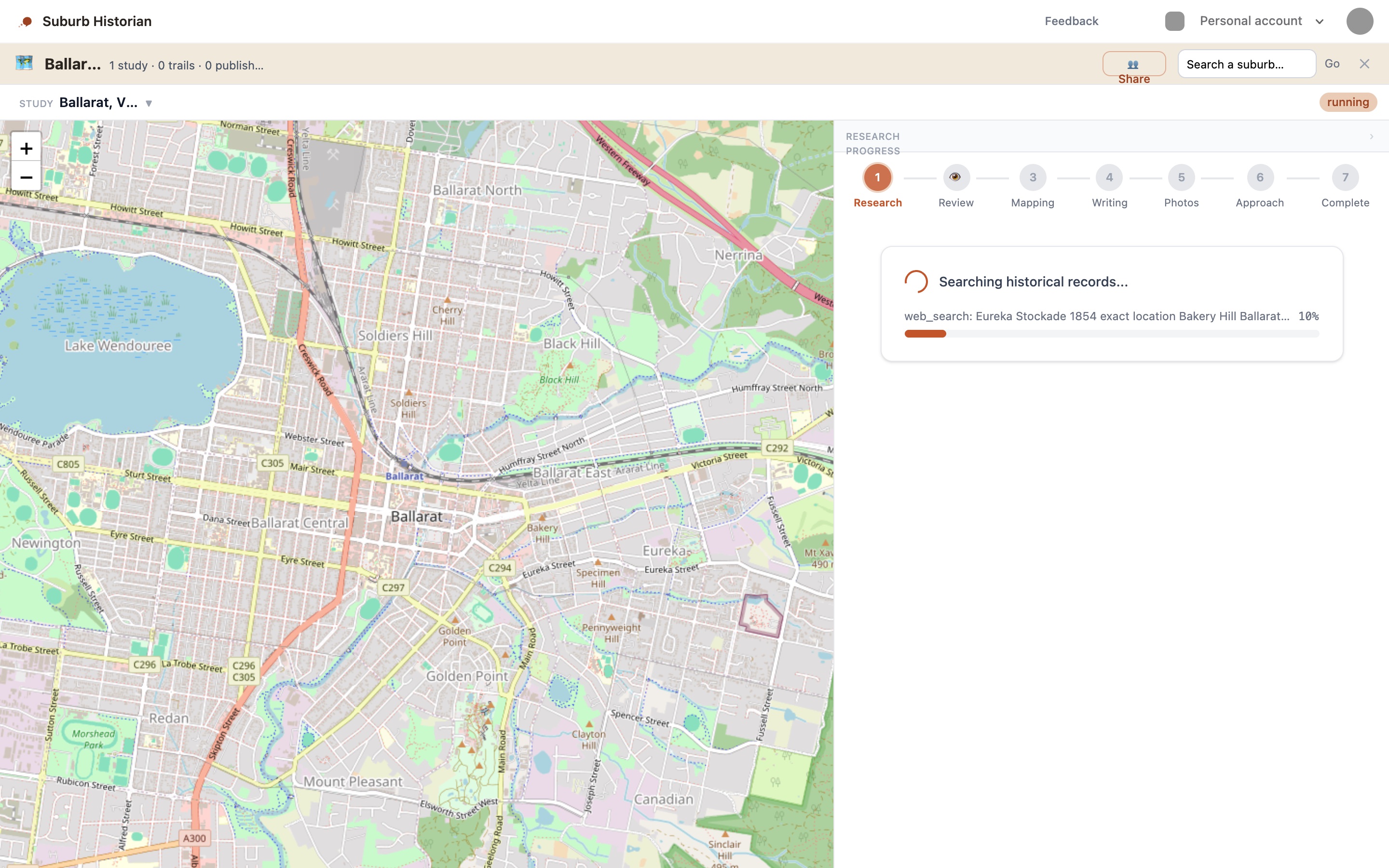
This usually takes three to five minutes. When we tried it with Ballarat, it took about three and a half. You don’t need to stay on the page. Close the tab or make a cup of tea, and the research carries on without you. When you come back, click the study in the Studies column to pick up where it is.
4. Review what the research found
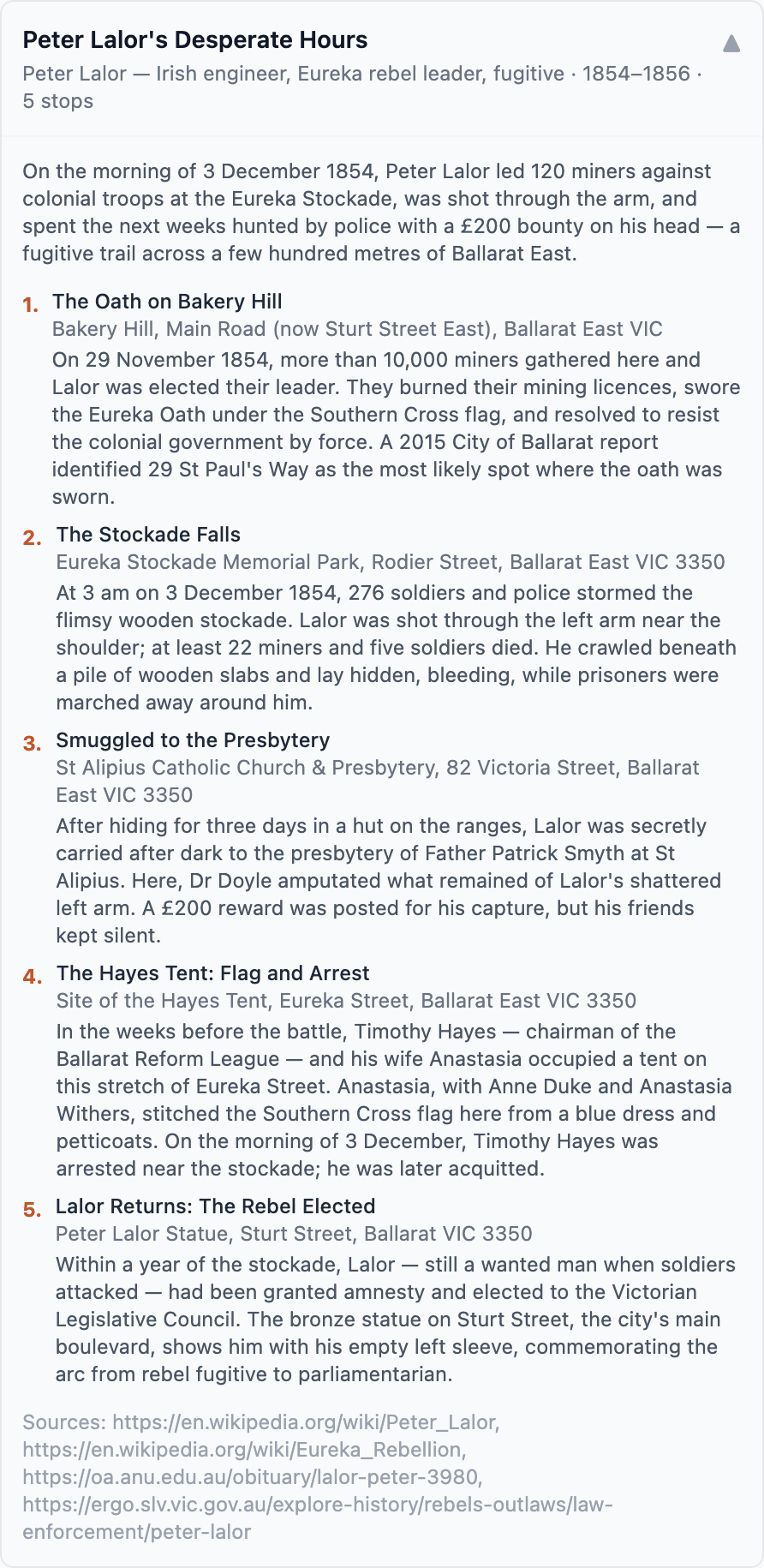
This is the important bit, and the only time the study stops and waits for you. The step tracker shows Review in amber, and the heading reads Trails found — anything to add?
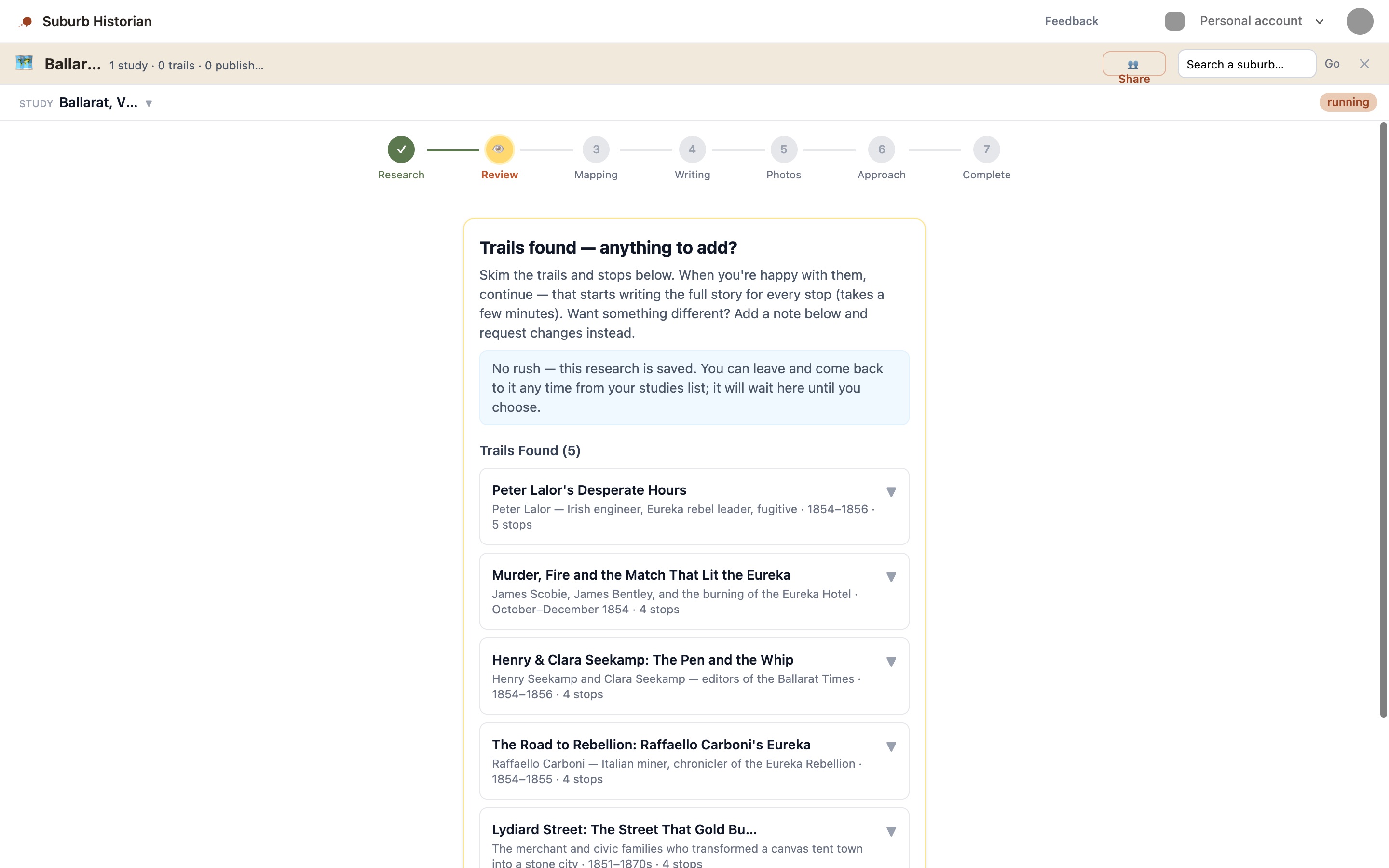
- Open each trail. Click a trail’s title to see its stops. Each stop shows a chapter title, the place, and a line on why it matters.
- Read it like a historian. You know this suburb better than anyone, so trust your knowledge. Ask yourself:
- Are the facts right? Are the dates and names correct?
- Is the place right? Is that really where it happened?
- Is anything important missing, or does something not belong?
- Pick a picture for the trail (optional). If any images were found, they appear under Select an image for this trail. Click the one you like best. If there aren’t any, don’t worry: photos are found for every stop in a later step, and you can always change them.
- Check the sources. At the bottom of each trail is a list of where the research came from. If you recognise a source as unreliable, say so in your note.
Leave a note for the writer
Under the trails is a box called Feedback for the Writing Agent. Anything you type here is passed on to the next step, which writes the full story for every stop. Use it to correct things and steer the tone:
- “The Hendersons’ mill closed in 1912, not 1920.”
- “Say more about the women who ran the boarding houses.”
- “Keep it gentle. This one’s for families with young kids.”
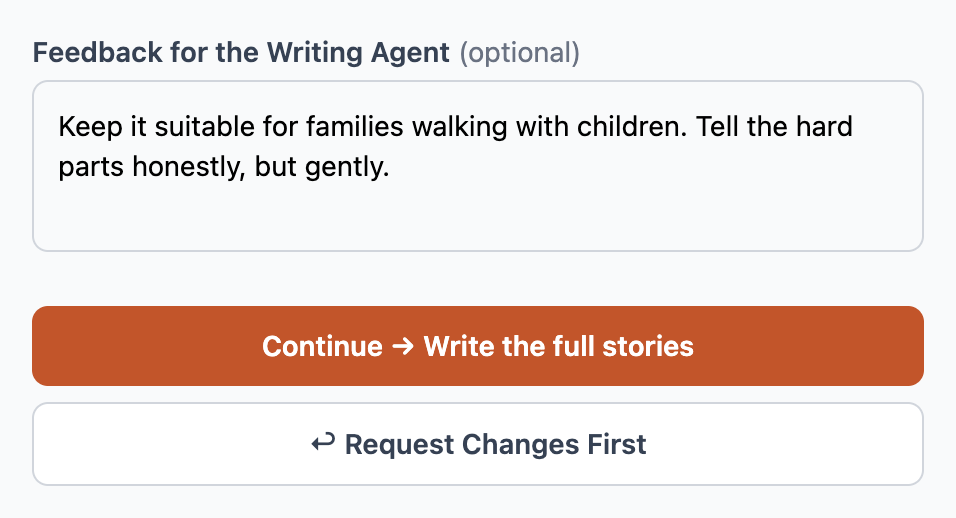
- When you’re happy, click Continue → Write the full stories.
5. The automatic part
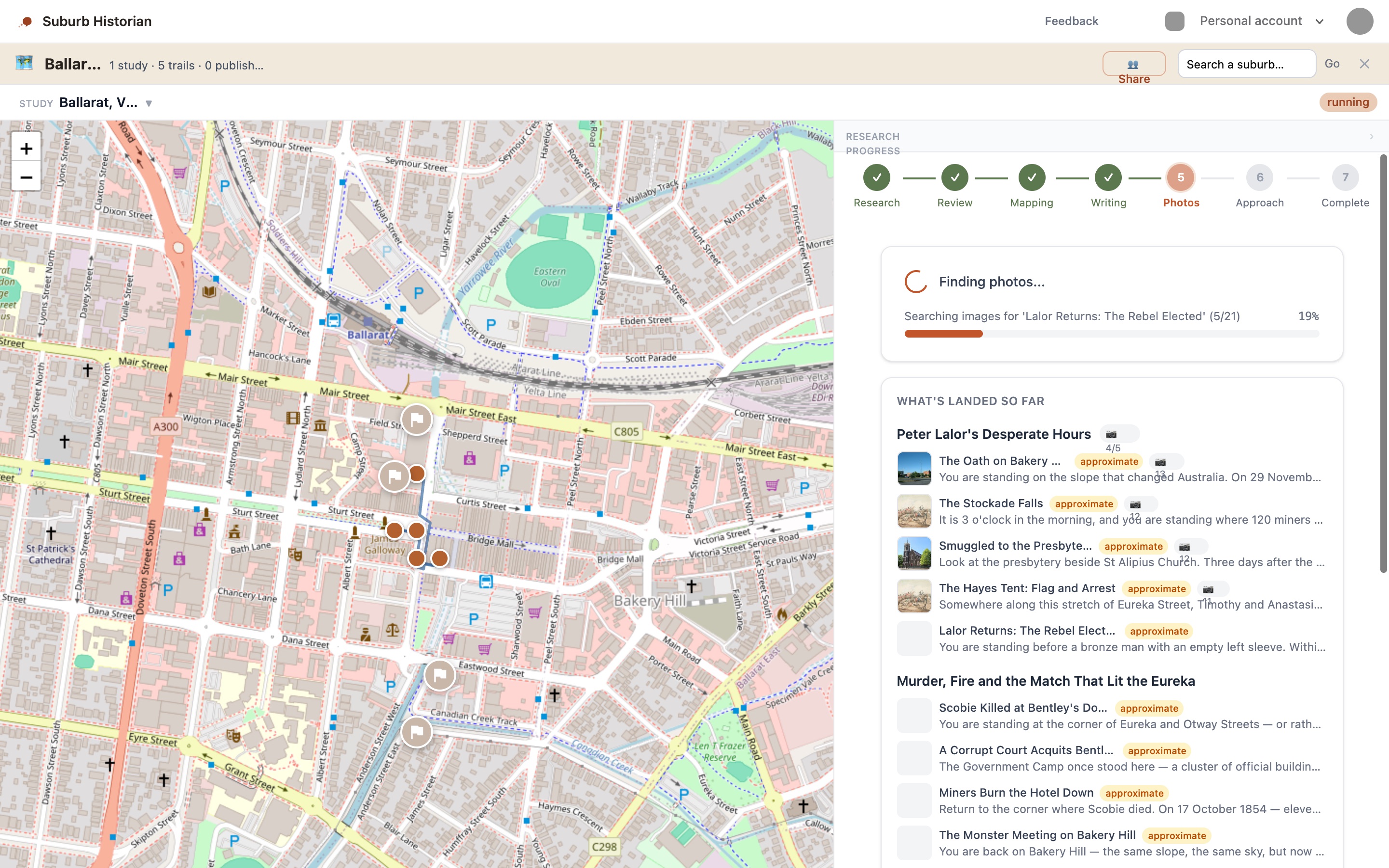
From here, Suburb Historian works through the rest on its own. Expect it to take 10 to 15 minutes. Most of that is the photo search, which checks several picture libraries for every single stop. (Our Ballarat test had 5 trails and 21 stops, and took 12 minutes.) You’ll see each step tick over:
- Mapping. Each stop gets a pin on the map. In the list, a stop marked located has been found exactly. One marked approximate is close, but worth checking later.
- Writing. The story you’ll hear on arrival at each stop is drafted.
- Photos. Historical photos are found for each stop from places like Trove, Wikimedia Commons and Flickr.
- Approach. A short story is written for the walk towards each stop, mentioning real landmarks along the way.
A panel called What’s landed so far fills in as each piece arrives: first the pins, then the stories, then the photos.
Once again, you don’t need to watch. Go and do something else for a quarter of an hour, then come back and click the study in the Studies column.
6. Your first draft is ready
When the last step finishes, the label at the top right changes to complete and the same tab turns into the workspace, where you’ll do all your editing from now on. It has three parts: the stops on the left, the map in the middle, and the details on the right. It opens on the Trail overview. Click any stop in the list to see its story, photo and pin instead. To switch to one of the study’s other trails, use the Trail menu at the top.
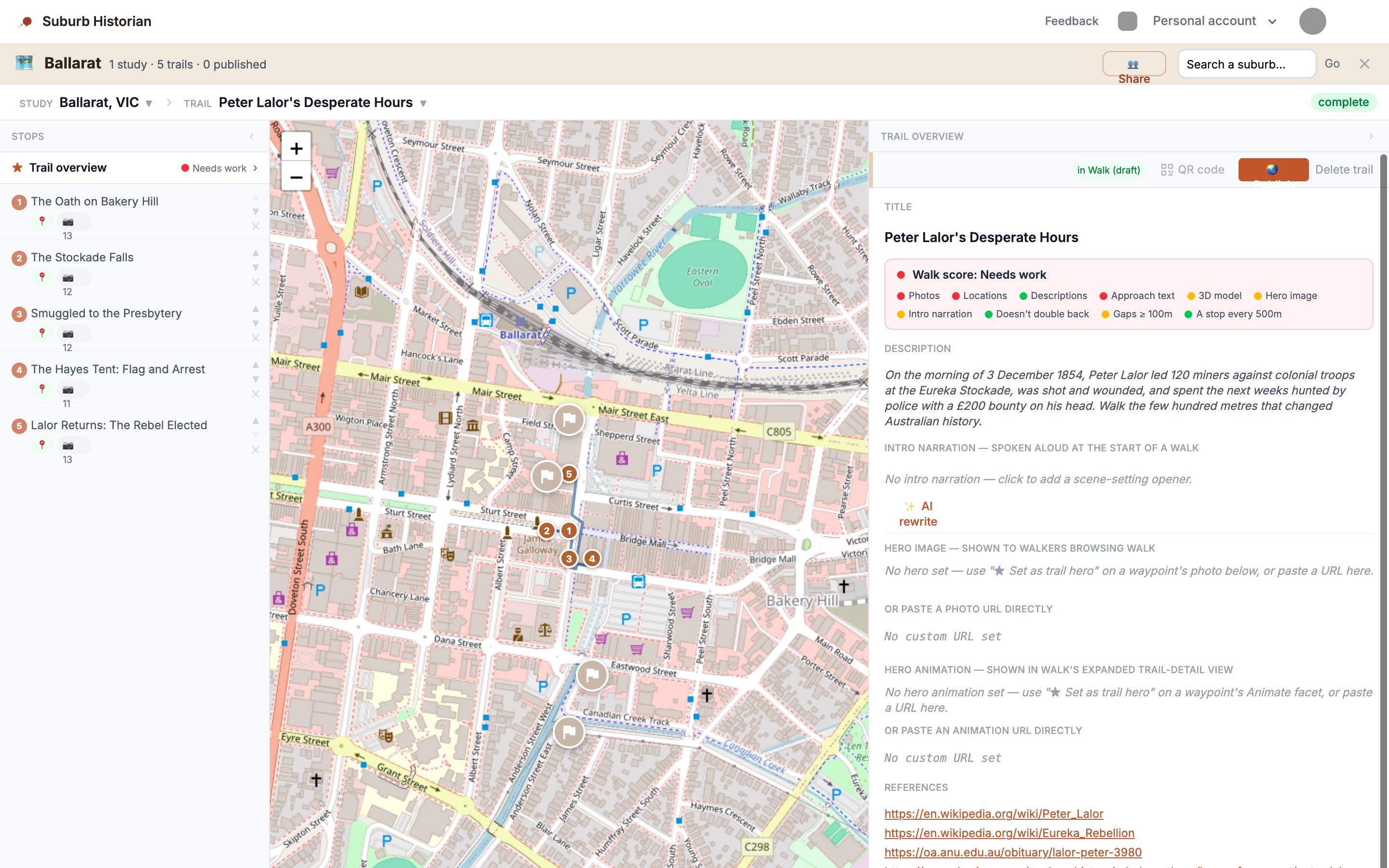
Every trail has a Walk Score, shown at the top of the Trail overview. It’s a coloured light showing how ready the trail is, with a dot for each thing it checks, such as photos, locations, and the gaps between stops:
- 🟢 Ready: good to go.
- 🟡 Needs polish: worth a look, but nothing’s broken.
- 🔴 Needs work: something needs fixing before walkers see it. The red dots show what.
Don’t be alarmed if a brand-new draft says Needs work. Most do. Usually the photos have been found but are still waiting for you to choose one for each stop, and a few pins marked approximate need checking. That’s the next part of the job, and it’s yours.
That’s it. You’ve made your first draft. Take your time with it. Read each stop aloud, fix anything that doesn’t sound right, and swap in photos you prefer. It stays a private draft until you publish it.
If something goes wrong
“Study paused.” Sometimes one of the services Suburb Historian relies on has a hiccup. Click Resume and it picks up where it stopped.
You clicked Stop by accident. Nothing is deleted. Open the study from the Studies column and click Resume.
“Something went wrong.” Email us at hello@storytrail.app with the suburb’s name and we’ll sort it out. Your research is saved.
The research came back thin. That happens with small or less-documented suburbs. Try starting a new study with a more specific Research focus, such as a street, a family, an industry or a decade, or with a larger neighbouring suburb.