Connect Claude to Story Trail
Add Story Trail as a connector in Claude, so you can ask it to find real history walks, or (as a historian) to read, tidy and publish your own studies by chatting.
- A Claude account at claude.ai, or the Claude app on your computer
- For the historian connector, a Suburb Historian account at historian.storytrail.app
- The two web addresses below, ready to paste
A video walkthrough is on its way. Until then, the steps and screenshots below cover everything it will.
What a connector does
A connector lets Claude reach into another service and use it, instead of guessing. (You may also see it called an MCP server. It’s the same thing: the name for the plug that joins an assistant to a service.)
Story Trail has two, and you can add either or both:
Address:
https://walk.storytrail.app/mcpAddress:
https://historian.storytrail.app/mcpYou can add a connector to Claude on the web (claude.ai) or in the Claude app on your computer. The steps are the same in both.
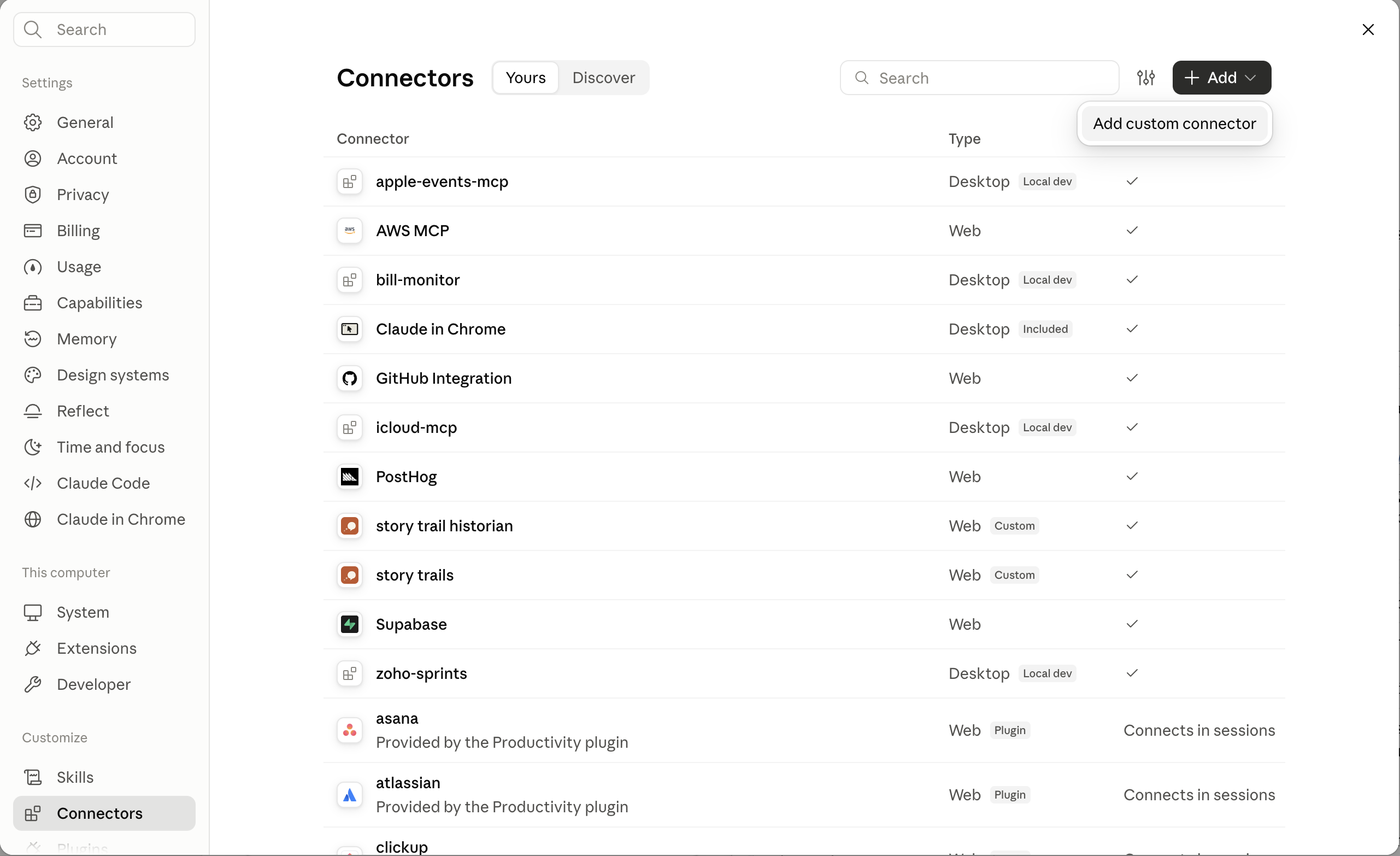
1. Open the connector settings
- Sign in to Claude.
- Click your name (bottom left), then Settings.
- In the list on the left, under Customize, choose Connectors.
- Click + Add (top right), then Add custom connector.
2. Add the public trail finder
- Click + Add, then Add custom connector.
- In the first box, type the name Story Trail.
-
In the address box underneath, paste:
https://walk.storytrail.app/mcp - Click Continue.
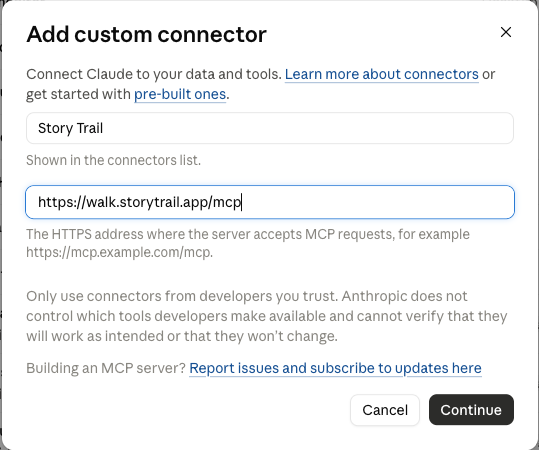
That’s the whole thing. There’s nothing to sign in to, because it only shares what is already public on the map.
3. Add the Suburb Historian connector (historians)
Do this the same way, with the other address.
- Click + Add, then Add custom connector again.
- In the first box, type the name Suburb Historian.
-
In the address box underneath, paste:
https://historian.storytrail.app/mcp - Click Continue.
- If Claude doesn’t take you straight to a sign-in window, click Connect next to Suburb Historian in your list.
- A Story Trail sign-in window opens. Sign in with the same email and password you use at historian.storytrail.app. It then asks whether Claude may access your Story Trail account. Click Allow.
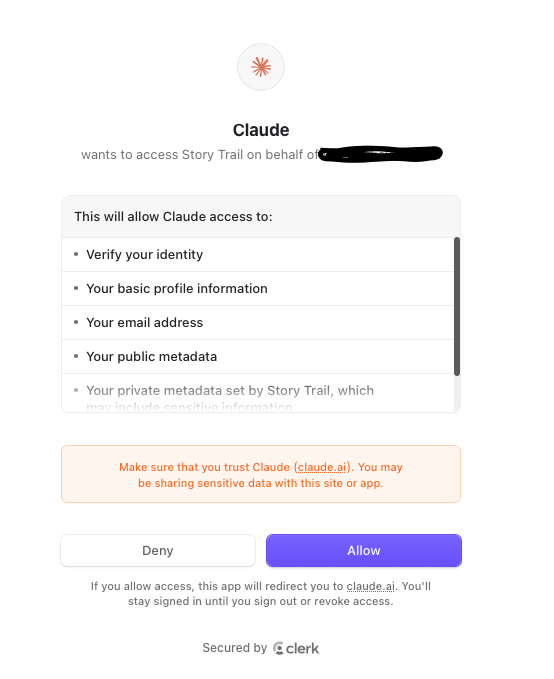
When you’re back in Claude’s settings, Suburb Historian should say it’s connected.
4. Turn it on for a conversation
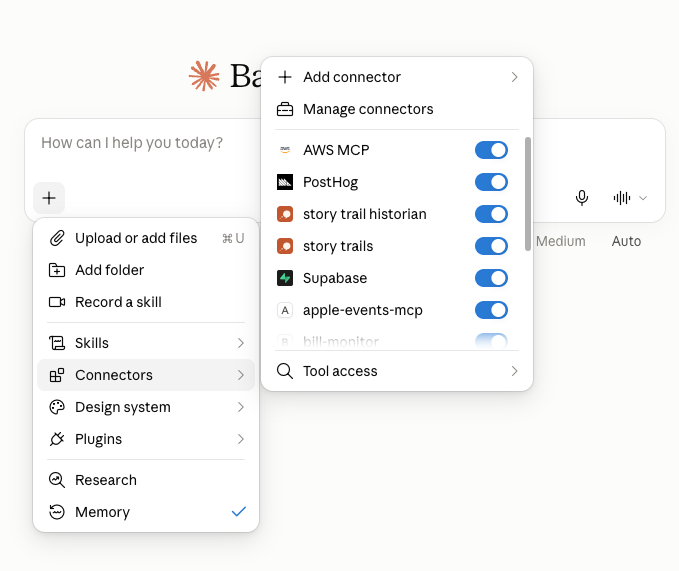
Connectors are only used when they’re switched on for the chat you’re in.
- Start a new chat.
- Click the + beside the message box, then Connectors.
- Make sure Story Trail (and Suburb Historian, if you added it) are switched on.
5. Try it
Start with something simple, to see it working.
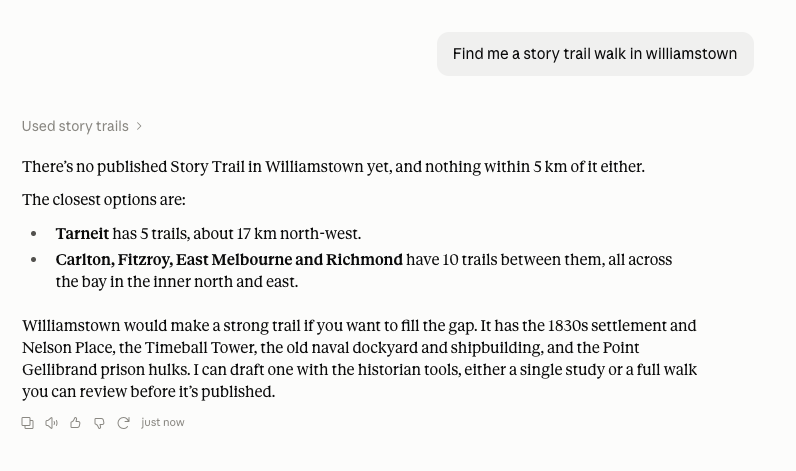
For anyone, with the Story Trail connector:
- “Where does Story Trail have walks?”
- “Find me a Story Trail walk near Footscray Park. How long is it?”
- “What’s the story at the first stop of that walk?”
Claude will say it’s using Story Trail, then answer with the trails it found and a link that opens each one on the map or in the Story Trail app.
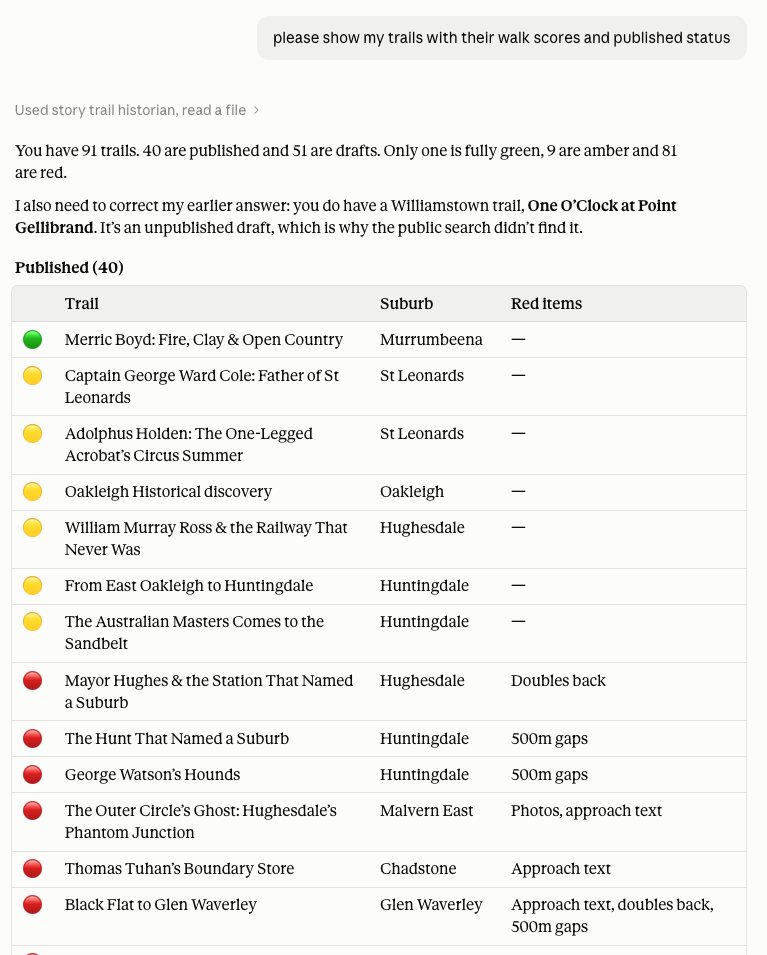
For historians, with the Suburb Historian connector:
- “Show me my studies.”
- “Which of my trails are ready to publish, and what’s holding the others back?”
- “Read the stops on my Point Gellibrand trail and tell me where the story drags.”
- “Rewrite the second stop in the same voice, but shorter. Show me before you change anything.”
- “Move the Esplanade stop so it comes before the fort.”
What Claude can and can’t do in Suburb Historian
It can read your studies and Walk Scores, edit a trail or a stop (title, story, approach text, location), add trails and stops, add sources, reorder stops, and publish or unpublish a trail.
It can’t yet start a brand-new AI research study, find photos, or delete anything. Those stay in the web app, where the first guide picks up.
Changes it makes are saved straight away, the same as if you’d made them yourself on the website, and they show up in Suburb Historian next time you look.
Other assistants
Story Trail’s connectors use an open standard (the Model Context Protocol), so they aren’t limited to Claude. Any assistant that can add a custom remote MCP server by web address can use the same two addresses above. The menu names differ from app to app, but you’ll be looking for something like Connectors, Tools, or MCP servers.
If you use Claude Code in a terminal, these two commands add them:
claude mcp add --transport http story-trail https://walk.storytrail.app/mcp
claude mcp add --transport http suburb-historian https://historian.storytrail.app/mcp
For developers: hear about changes without asking
The public connector answers questions about trails as they are right now. If you’re building something that should know the moment a trail goes live or changes (a trip planner, an assistant that keeps a list of walks, another tool of yours), you don’t have to keep asking. Story Trail can knock on your door instead. That’s called a webhook.
You’ll hear about four things, and only about trails that are published (drafts stay private):
- trail.published: a trail has just gone live.
- trail.updated: a live trail, or one of its stops, has changed.
- trail.unpublished: a trail has been taken back to draft.
- trail.deleted: a live trail has been removed.
Each message is deliberately small: just which trail it is (trail_id), its title and suburb, and its link. To read the full story, ask the public connector (get_trail) with that trail_id. It will always give you the latest version.
To set one up you’ll need a Story Trail sign-in (the same one as the app) and an https address on your side that can receive a message:
- Send a
POSTtohttps://walk.storytrail.app/api/webhook-subscriptionswith your sign-in token and the address, for example{"url": "https://example.com/story-trail-hook"}. You can narrow it with"events"(only the kinds you want) and"suburb"(only one place). - The reply includes a secret. It’s shown once, so save it now.
- Send a test with
POST /api/webhook-subscriptions/<id>/testto check your address is working.
Check it’s really us. Every message carries an X-StoryTrail-Signature header. Work out the same signature yourself (an HMAC-SHA256 of the timestamp, a full stop, and the message body, using your secret) and ignore anything that doesn’t match or is more than a few minutes old.
Good to know. Reply with any success code within 10 seconds. If you don’t, we try three times, and after ten failures in a row we switch that webhook off (list yours with GET /api/webhook-subscriptions to see its status). Messages aren’t kept if Story Trail restarts, so it’s wise to check the full list of trails now and then.
If something goes wrong
I can’t see “Add custom connector”. On a work or school plan, an owner has to allow it. Send them the addresses in this guide.
The sign-in window says I’m not allowed, or shows an error. Check you’re using the email you registered at historian.storytrail.app. If it still fails, remove the connector and add it again.
Claude says it can’t see my studies. Check Suburb Historian is switched on in this chat (step 4), and that it shows as connected in Settings. Then ask again.
Claude didn’t use Story Trail and just answered from memory. Ask it to: “Use the Story Trail connector to look for this.” Check the connector is switched on in this chat.
It says a trail doesn’t exist. The public connector only knows about published trails. A draft will only show up through the Suburb Historian connector.
Anything else. Email us at hello@storytrail.app and tell us which step you’re on.